
The safest system for your banking logins isn’t about physical vs. digital; it’s about which one best defends against the massive, automated threats you actually face.
- A notebook is vulnerable to localized risks (theft, fire), while reused passwords stored in it create a scalable digital risk across the entire internet.
- A password manager’s core job is to eliminate password reuse and defend against large-scale attacks like credential stuffing, which are far more common than a targeted home robbery.
Recommendation: For any critical account like banking or email, a reputable password manager is unequivocally safer because it directly counters the most probable online threats. A notebook should never be used to store reused passwords.
The debate between a digital password manager and a physical notebook feels like a classic head-to-head: high-tech convenience versus tangible, offline security. You might think, “My notebook can’t be hacked,” and you’re right. But this overlooks the real danger. The greatest threat to your bank account isn’t a sophisticated hacker targeting you specifically; it’s an automated bot trying your leaked email and password from an old data breach on every website it can find. This is the fundamental misunderstanding at the heart of personal security. As the National Cybersecurity Alliance points out, “Password managers today are safer than ever before, and they are much safer than using a physical notebook, storing passwords in a Notes app or reusing passwords that are easy to remember.”
The core of modern digital defense isn’t just about protecting a secret; it’s about managing your personal threat model. This means understanding the most likely ways you’ll be attacked. For the average person, that threat is not a cat burglar hunting for your little black book of passwords. The real threat is scalable, automated, and invisible. It’s an army of bots testing old, reused passwords against your banking portal 24/7. Your security strategy must be designed to defeat this specific, high-volume threat, not a hypothetical one.
This guide reframes the discussion. We will move beyond the simple “is it safe?” and ask, “safe from what?” By analyzing common but overlooked security scenarios, we will build a practical framework for operational security (OpSec) in your daily life. It’s time to stop thinking about a single lock and start thinking about a security system designed for the digital world you actually live in.
Summary: A Pragmatic Guide to Securing Your Digital Life
- Why Using Your Dog’s Name for Every Site Puts Your Bank at Risk?
- How to Ensure Your Spouse Can Access Your Accounts If You Pass Away?
- The Mistake of Answering “Mother’s Maiden Name” Truthfully in Recovery Questions
- How to Spot a Fake “Urgent” Email from Your CEO in 3 Seconds?
- Face Unlock or 6-Digit PIN: Which Is Legally More Secure at a Border Crossing?
- The Mistake of Keeping Default “0000” PINs on IoT Gadgets
- YubiKey or SMS: Is Buying a Hardware Key Worth It for Personal Email?
- How to Configure Your Notification Channels to Recover 1 Hour of Focus Daily?
Why Using Your Dog’s Name for Every Site Puts Your Bank at Risk?
The most common security mistake isn’t choosing a weak password; it’s reusing a strong one. Let’s say you use “FidoLovesTennis!23” for your social media, your favorite online store, and your bank. You might feel clever, but you’ve created a massive vulnerability. When that online store inevitably suffers a data breach, your email and that “strong” password are now in the hands of attackers. They will then use automated software to try that exact combination on hundreds of other high-value sites, including every major bank. This attack is called credential stuffing.
The logic of a notebook often encourages this dangerous habit. It’s far easier to write down one password for everything than a unique one for each site. This is where the threat model shifts from localized to scalable. A stolen notebook is one incident. A leaked, reused password is a key that can be tried on thousands of doors simultaneously and automatically. While the success rate for any single attempt is low, the sheer volume makes it incredibly effective; studies on credential stuffing attacks show their proven effectiveness, where even a 0.1% success rate can lead to thousands of compromised accounts from a single list of leaked credentials.
Case Study: The 2022 PayPal Incident
In a clear example of this threat, PayPal reported that nearly 35,000 of its customer accounts were accessed by attackers. PayPal’s own systems were not breached. Instead, the attackers simply took login credentials that had been leaked from other, older data breaches and used them to successfully log into PayPal accounts where users had recycled the same passwords. This highlights that even with a secure service, your account is only as strong as your weakest link elsewhere on the web.
A password manager’s primary function is to solve this one problem perfectly. By generating and remembering a unique, complex password for every single site, it completely neutralizes the threat of credential stuffing. If one site is breached, the damage is contained. The attackers get a key that only works for one, non-critical door, and your bank account remains secure. This single feature makes it fundamentally safer than a notebook used for storing reused passwords.
How to Ensure Your Spouse Can Access Your Accounts If You Pass Away?
Digital security isn’t just about protecting yourself from threats; it’s also about providing for your loved ones in an emergency. This is the concept of digital legacy, and it’s where a physical notebook shows its most profound weakness. If your password notebook is hidden “somewhere safe,” what happens if you pass away unexpectedly? Your family is left with the heartbreaking and often impossible task of guessing logins, navigating recovery processes, and proving identity to access critical financial accounts, digital photos, and important documents.
Hiding a notebook is security through obscurity, which fails catastrophically when the one person who knows the secret is gone. A modern password manager, however, is built with this exact scenario in mind. Most reputable services like 1Password, Dashlane, and Bitwarden offer a feature called “Emergency Access” or “Digital Legacy.” This allows you to designate a trusted person (like a spouse or lawyer) who can request access to your vault. To prevent misuse, a waiting period you define (e.g., 30 days) begins. If you don’t reject the request within that time, access is granted.
This provides a secure, auditable, and reliable method for transferring your digital life. It’s a formal system, unlike a hidden book that could be lost in a fire, accidentally thrown away, or simply never found. Planning your digital legacy is a responsible and compassionate act, ensuring your family’s administrative burden is minimized during a difficult time. The sealed instructions and backup drives become part of a comprehensive estate plan, not a desperate treasure hunt.
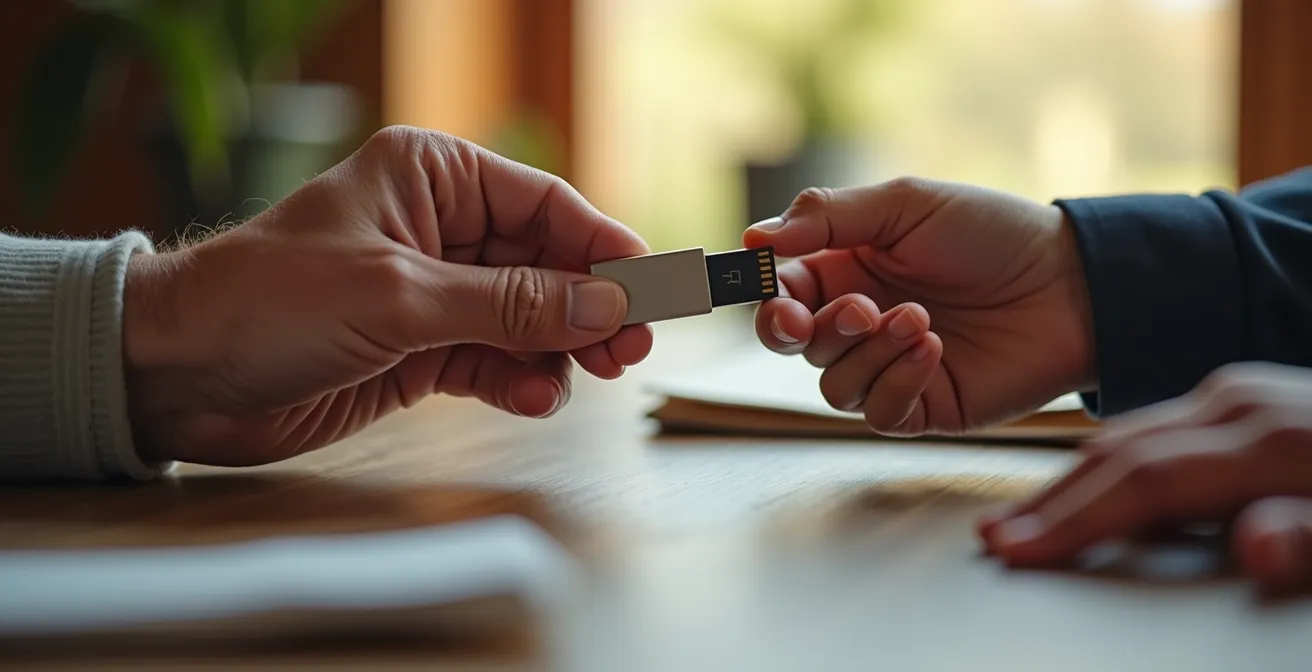
As this image suggests, passing on your digital keys is a deliberate and important act. It transforms password management from a personal chore into a cornerstone of family preparedness, a function a simple notebook can never hope to fulfill in a structured and secure manner.
The Mistake of Answering “Mother’s Maiden Name” Truthfully in Recovery Questions
Your digital security is not just about your password; it’s about your entire attack surface. Security questions are a prime example of a weak point many people overlook. Questions like “What was your mother’s maiden name?” or “What city were you born in?” are terrible for security because their answers are often semi-public, permanent, and easily discoverable through genealogy websites, social media profiles, or public records. Answering them truthfully is like leaving a spare key under a doormat that has your address written on it.
A paper notebook offers no solution here. You’re still tempted to use real, memorable answers. This is where a password manager’s role expands beyond just passwords. It becomes a secure database for *all* your secrets. The proper technique is to treat security questions as just another password. Never provide the real answer. Instead, generate a random, fake answer and store it in your password manager alongside the login for that site. For the question “Mother’s maiden name?”, your answer could be “BlueGiraffe47” or “LawnmowerOcean.”
This approach makes the answers impossible to guess or research. As one password security expert on the Bogleheads forum wisely stated:
I make up the values for security questions, so those get stored in my password manager as well
– Password security expert, Bogleheads.org forum discussion
By doing this, you’ve dramatically shrunk your attack surface. You’ve turned a weak, fact-based recovery method into a strong, password-protected one. A password manager enables this superior strategy, whereas a notebook provides no structure or encouragement to do so.
This table from an analysis by the National Cybersecurity Alliance clearly categorizes the risks associated with different types of security questions, reinforcing the need to use fake, generated answers.
| Category | Examples | Risk Level | Recommended Action |
|---|---|---|---|
| Publicly Discoverable Facts | Mother’s maiden name, City of birth, High school | High | Always use fake answers stored in password manager |
| Private Opinions | Favorite book, Dream job, Best teacher | Medium | Use generated random answers for maximum security |
| Historical Data | First car, Childhood pet, Street you grew up on | High | Never use real answers – social media exposes these |
How to Spot a Fake “Urgent” Email from Your CEO in 3 Seconds?
Not all attacks are automated; some are psychological. Phishing is a form of social engineering where an attacker tricks you into revealing information or taking an action, like transferring money. A common tactic is the “urgent request” email, seemingly from a boss or colleague, demanding you buy gift cards or process a wire transfer immediately. These emails prey on our instinct to be helpful and our fear of authority. They work with terrifying speed; the 2024 Verizon Data Breach Investigation Report reveals a median time of less than 60 seconds for users to fall for a phishing scam.
Neither a password manager nor a notebook can directly stop you from clicking a malicious link. This is where personal training—your own operational security (OpSec)—becomes the primary defense. However, the mindset instilled by using a password manager can help. It trains you to be more deliberate and skeptical about digital communications. More importantly, it provides a framework for verification. The key to defeating these scams is to break the spell of urgency with a simple, three-second verification protocol.
Before ever acting on an urgent or unusual email request, perform these three checks:
- Hover to Reveal: Hover your mouse over the sender’s name (don’t click). This will reveal the true email address. An executive at a large company will never email you from a generic Gmail or Hotmail account. If the domain doesn’t match the company’s official one, it’s a fake.
- Analyze the Request: Does the request combine high urgency with an unusual action? A real CEO has established procedures for financial transactions; they won’t ask you to run out and buy iTunes gift cards via email. This combination is a massive red flag.
- Verify Off-Channel: If you have any doubt, verify the request through a different communication channel. Send a text message or make a quick call to the person using a phone number you already have saved. Never use the contact information provided in the suspicious email itself.
This simple habit of “Stop, Inspect, Verify” can neutralize the vast majority of phishing attempts. It’s a mental tool, but one that fits perfectly within a broader culture of digital security fostered by tools like password managers.
Face Unlock or 6-Digit PIN: Which Is Legally More Secure at a Border Crossing?
The choice between biometric authentication (your face or fingerprint) and a knowledge-based secret (a PIN or passphrase) has significant legal implications, especially in situations like a border crossing. This introduces a very specific threat model: legal compulsion. In many jurisdictions, including the United States, your legal rights to protect these two types of secrets are different.
The core of the issue lies in the right against self-incrimination. A password is “testimonial” evidence—it’s something you *know*. Forcing you to reveal it can be seen as compelling you to testify against yourself. Your face or fingerprint, however, is considered “physical” evidence—it’s something you *are*. Just as an officer can compel you to provide a key to a physical lockbox, they may be able to compel you to use your face or finger to unlock a device.
A digital rights legal expert, in an analysis of the topic, put it this way:
A PIN/password can be considered testimonial knowledge protected by the right against self-incrimination, whereas your face or fingerprint can be considered physical evidence that you can be compelled to provide
– Digital rights legal expert, Legal analysis of biometric vs knowledge-based authentication
This means that in a high-scrutiny environment, a strong alphanumeric passphrase is legally more robust than the convenience of Face ID. A password manager excels here. It allows you to protect your vault with a very long, complex master passphrase that you can memorize, while disabling biometric unlock. Some password managers even offer a “Travel Mode,” which temporarily removes sensitive vaults from your device, making them invisible until you re-enable the feature once you are safely through the checkpoint. A simple notebook offers no such dynamic protection.
Action Plan: Border Crossing Digital Security Protocol
- Before reaching the border, go into your device settings and disable all biometric authentication methods (Face ID, Fingerprint Unlock).
- Switch your device’s primary lock from a simple PIN to a strong, alphanumeric passphrase.
- If your password manager supports it, enable its “Travel Mode” to hide sensitive password vaults from the device.
- Ensure all essential data is backed up to a secure cloud service before you begin your travel, in case the device is seized.
- Make a documented list of all electronic devices you are carrying and be prepared for a potential inspection.
The Mistake of Keeping Default “0000” PINs on IoT Gadgets
Your security perimeter extends far beyond your phone and computer. Every “smart” device on your home network—from the security camera and baby monitor to the smart TV and thermostat—is a potential entry point for an attacker. Many of these Internet of Things (IoT) devices ship with notoriously weak default passwords like “admin,” “password,” or “0000.” Failing to change them is like leaving a side door to your digital house wide open.
This creates a threat model where an attacker doesn’t need to breach your bank directly. Instead, they can compromise a low-security device on your network and use it as a “beachhead” for further attacks. As outlined in a study on network vulnerabilities, compromised IoT devices can serve as beachheads for attackers to scan the internal network, intercept unencrypted traffic, and launch attacks against more secure devices—like the phone or computer you use for banking.
A physical notebook is completely irrelevant for managing this risk. Are you really going to create a page for your smart lightbulbs? This is another area where a password manager is the only logical tool. It can store the unique, complex passwords for every single device on your network, no matter how insignificant it seems. By changing the default credentials on your router, your security cameras, and all other IoT gadgets and storing them in your vault, you secure your entire network perimeter. This prevents an attacker from gaining that initial foothold from which to launch a more serious assault on your critical accounts.
This holistic approach to security is vital. The financial sector is a prime target, and attackers use any means necessary to gain access. The FBI has noted that a significant portion of security incidents in the financial sector stem from compromised credentials. By securing every internet-connected device, you’re not just protecting that device; you’re hardening the entire environment where your financial data lives.
Key Takeaways
- The biggest threat isn’t a thief stealing your notebook, but automated bots using a leaked password from one site to attack all your other accounts (credential stuffing).
- A password manager’s core function is to create unique passwords for every site, which completely neutralizes the risk of password reuse.
- True digital security includes planning for your “digital legacy” by setting up emergency access for a trusted person, a feature a notebook cannot provide.
- Never answer security questions truthfully. Treat them like passwords by generating fake answers and storing them in your vault.
YubiKey or SMS: Is Buying a Hardware Key Worth It for Personal Email?
Once you’ve stopped reusing passwords, the next layer of defense is Multi-Factor Authentication (MFA), often called Two-Factor Authentication (2FA). This requires a second piece of evidence to log in, usually a code sent to your phone. However, not all MFA is created equal. The most common method, receiving a code via SMS text message, is vulnerable to “SIM-swapping” attacks, where a criminal convinces your mobile provider to transfer your phone number to their own device, allowing them to intercept your codes.
This is where a hardware security key, like a YubiKey, provides a vastly superior level of protection. A hardware key is a small physical device that plugs into your computer or connects via NFC to your phone. It uses advanced public-key cryptography to verify your identity. To log in, you need your password plus the physical key. An attacker across the world cannot intercept a physical object you hold in your hand. This makes it the gold standard for securing high-value accounts, especially your primary email, which is often the gateway to resetting all your other passwords.
Is it worth the cost for personal use? For your bank account and primary email, the answer is an emphatic yes. Think of it this way: financial institutions are prime targets for credential-based attacks and are themselves investing heavily in the strongest forms of MFA, including support for hardware keys, because they provide the most robust protection against account takeover. If banks consider it a necessary defense for their systems, you should consider it a wise investment for protecting your access to those systems.
A notebook has no role in MFA. A password manager, on the other hand, integrates perfectly. It can store your standard passwords, act as an authenticator app for generating time-based codes (a good step up from SMS), and works seamlessly with hardware keys for your most critical accounts. This layered approach—unique password + hardware key—is the most secure setup available to an individual today.
How to Configure Your Notification Channels to Recover 1 Hour of Focus Daily?
In our final analysis, we arrive at a less obvious but crucial aspect of digital hygiene: managing your attention. A constant barrage of notifications from emails, social media, and news apps doesn’t just fragment your focus; it also degrades your security. Every non-essential notification is a potential Trojan horse—a distraction that lowers your guard and increases the chance you’ll mindlessly click on a sophisticated phishing link disguised as just another alert.
Gaining control over your digital environment is an act of security. By deliberately curating your notification channels, you can create a calmer, more focused state of mind where you are better equipped to spot anomalies and suspicious requests. This isn’t about Luddism; it’s about intentionality. The goal is to separate the signal from the noise, ensuring that the only alerts that can interrupt you are those that are truly urgent and actionable.
Start by categorizing all your apps into three buckets: Actionable & Urgent (calendar alerts for a meeting, 2FA codes), Informational (a friend’s social media post, a news headline), and Junk (a shopping app’s “special offer”). Then, ruthlessly disable all notifications at the operating system level for the Informational and Junk categories. For email, create a “VIP” list for critical contacts whose messages can trigger an alert, while all others are delivered silently. Many password managers can even act as your 2FA code generator, consolidating all your critical security alerts into one secure app.
By scheduling “focus hours” where no notifications are allowed and being deliberate about what is allowed to demand your attention, you not only reclaim productive time but also build a powerful mental defense. A less-distracted mind is a more secure mind. This final layer of personal operational security transforms your digital life from a state of reactive chaos to one of proactive control.
Ultimately, securing your digital life comes down to a simple choice: adopt a system that actively defends against the most common and dangerous threats you face. A password manager, combined with good operational security, is that system. The first step is the most important: choose a reputable password manager, install it, and use it to change the password on your single most critical account—your primary email. That one action will do more to protect you than anything else.