
The belief that a single, expensive NVMe SSD will magically solve all your 4K editing lag is a myth; your real-world performance is dictated by the weakest link in your entire data pipeline.
- A powerful GPU can’t compensate for CPU bottlenecks caused by heavy codecs like H.264, making a proxy workflow essential.
- A fast NVMe drive can be slowed by 50% or more if it’s not part of a tiered storage strategy that separates the OS, active projects, and cache.
Recommendation: Instead of buying the single fastest drive, build a balanced system with a tiered storage setup (NVMe for OS/cache, a second SSD for projects) and focus on optimizing your entire workflow, from codec choice to cooling.
If you’re a content creator stepping up to 4K, you’ve likely faced this dilemma. You’ve invested in a powerful CPU and a top-tier graphics card, yet your timeline still stutters, previews lag, and renders take an eternity. The conventional wisdom points to your storage, and suddenly you’re staring at two acronyms: NVMe and SATA. The price gap is significant, and every forum post screams that NVMe is the only choice for “pro” work. While it’s true that NVMe drives offer staggering sequential read/write speeds, simply dropping the fastest one into your rig is not a silver bullet.
The common advice to “just get the fastest drive” or “always use proxies” oversimplifies a complex issue. These are pieces of the puzzle, not the whole picture. The painful truth is that performance bottlenecks are systemic. A lightning-fast NVMe drive can be crippled by an inefficient codec, poor file management, slow external connections, or even its own heat. Your editing PC is an ecosystem, a complete data pipeline from the moment footage is ingested to the final export. The speed you actually experience is determined not by your strongest component, but by your weakest link.
This guide moves beyond the simplistic “NVMe is faster” platitude. We’ll dissect the entire 4K editing workflow from a hardware geek’s perspective. We will explore the hidden bottlenecks that even seasoned editors overlook, showing you how to build a truly responsive system. Instead of just chasing raw speed, you will learn to build a smart, balanced, and cost-effective editing machine where every component works in harmony to deliver the smooth, real-time performance you need.
To navigate this complex topic, we have structured this guide to tackle each potential bottleneck in your video editing workflow, providing a clear path to optimized performance.
Summary: A Pro’s Guide to Optimizing Your 4K Editing Storage
- Why Your Video Previews Lag Even with a Powerful Graphics Card?
- The Storage Mistake That Slows Down Your Lightning-Fast SSD by 50%
- USB-C or Thunderbolt 3:Why Your Bluetooth Audio Lags While Gaming and How to Fix It?
- TBW Ratings: How Long Will Consumer SSDs Last Under Daily 4K Rendering?
- Heatsink or Not: Do Fast NVMe Drives Need Cooling to Prevent Throttling?
- How to Batch-Process 50 Photos on Your Phone in Under 10 Minutes?
- Why Your Nightly Cloud Backup Fails Even with “Fast” Internet?
- How to Set Up a Failover Internet Connection for Your Home Office?
Why Your Video Previews Lag Even with a Powerful Graphics Card?
The most common frustration in video editing is a choppy timeline, especially when you know you have a beast of a graphics card. The culprit is often not the GPU but a fundamental misunderstanding of the data pipeline: the codec. Highly compressed codecs like H.264 or H.265, common in footage from mirrorless cameras, drones, and smartphones, are designed for small file sizes, not for smooth editing. While your GPU handles effects and scaling, your CPU bears the heavy burden of decoding these complex files in real-time for every single frame you preview. This intense codec overhead creates a massive CPU bottleneck, completely sidelining your powerful GPU.
Even the fastest storage drive can’t solve this problem, because the bottleneck isn’t the speed of data delivery; it’s the time it takes the CPU to un-pack that data. Research into codec performance confirms that while H.264 achieves high quality at manageable bitrates, it demands significant processing power for real-time decoding. This is where a proxy workflow becomes a non-negotiable professional practice. Proxies are smaller, low-resolution copies of your original media created in an edit-friendly codec like Apple’s ProRes or Avid’s DNxHD. These codecs are far less compressed, requiring minimal CPU power to decode.
By editing with these lightweight proxy files, you shift the workload away from the CPU. Your timeline becomes incredibly fluid, allowing for real-time playback and scrubbing, even with multiple 4K streams and effects. Frame.io highlights that in Adobe Premiere Pro, you can even create proxies for specific, demanding clips using the “Render and Replace” function with a codec like ProRes 422. This targeted approach means you aren’t forced to transcode hours of footage, but can instead focus on the sections that are causing performance issues. Your original high-quality files are then relinked automatically for the final export, ensuring no loss of quality. Thinking a fast SSD will fix codec lag is like putting a race car engine in a vehicle with bicycle wheels—the power is there, but it can’t be effectively applied.
The Storage Mistake That Slows Down Your Lightning-Fast SSD by 50%
So, you’ve decided an NVMe is the way to go. You buy a single, large-capacity drive, install your operating system, editing software, and dump all your project files, media cache, and source footage onto it. This is the single most common—and costly—storage mistake an editor can make. While an NVMe drive is incredibly fast, it’s not invincible. Asking one drive to handle simultaneous requests from the OS, software operations, media caching, and high-bitrate video playback creates a traffic jam of read/write commands. This contention can easily slash your drive’s effective performance by 50% or more, resulting in the very stuttering and lag you were trying to eliminate.
The professional solution is a tiered storage strategy. This doesn’t necessarily mean spending more money; it means being smarter about how you allocate your resources. By dedicating different drives to different tasks, you create clear, uncongested lanes for your data, allowing each drive to perform its specific function at maximum efficiency. A SATA SSD, while slower than an NVMe for raw throughput, is more than capable of handling project files or even proxies, freeing up your primary NVMe to do what it does best: serve the OS and cache files with lightning speed.
The performance gap between drive types is significant, but it’s their role in the system that truly matters. This approach allows you to build a high-performance system without breaking the bank. For an in-depth comparison, this table breaks down the typical specifications and use cases for each drive type, demonstrating why a tiered strategy is superior to a single-drive setup, as detailed in a comprehensive analysis of video editing SSDs.
| Specification | SATA SSD | NVMe Gen 4 |
|---|---|---|
| Maximum Speed | 550 MB/s | 5,000-7,000 MB/s |
| 4K Timeline Performance | Can struggle with multiple streams | Smooth multi-stream editing |
| Typical Use Case | Light 1080p projects | 4K/6K professional editing |
| Price per GB | Lower | Higher |
Implementing this strategy correctly is crucial for maintaining a smooth workflow. The following checklist outlines the ideal configuration for a high-performance video editing workstation.
Action Plan: Your Optimal SSD Configuration
- Dedicate a separate NVMe drive for your operating system and applications to ensure snappy system response.
- Use a second fast drive (ideally NVMe, but a SATA SSD works well) exclusively for your active project files and media cache.
- Store proxy files next to their source media in an organized sub-folder to keep projects portable and tidy.
- Maintain at least 20-25% free space on all active SSDs to prevent significant performance degradation as the drive fills up.
- Ensure TRIM is enabled in your operating system to allow the SSD to efficiently manage and maintain its long-term performance.
USB-C or Thunderbolt 3:Why Your Bluetooth Audio Lags While Gaming and How to Fix It?
Your internal storage is only one part of the data pipeline. As a video editor, you’re constantly moving large files: from camera cards, to external drives for collaboration, and to archive storage. The connection port you use for these external drives is a critical, and often overlooked, bottleneck. It doesn’t matter if you have a 1,000 MB/s external SSD if you connect it via a USB port that caps out at 480 Mbps. The title of this section is a bit misleading; while USB-C and Thunderbolt 3 are relevant, the issue of Bluetooth audio lag is a separate wireless interference problem. Our focus here is purely on the wired data transfer speeds essential for editing.
The physical connector for both modern USB and Thunderbolt is USB-C, but what’s under the hood is vastly different. A standard USB 3.2 Gen 2 (often just called USB-C) port offers speeds up to 10 Gbps (~1,250 MB/s), which is fantastic for many tasks. However, Thunderbolt 3 and 4 ramp that up to a massive 40 Gbps (~5,000 MB/s). This isn’t just a “nice to have”; for certain professional workflows, it’s a necessity. Imagine editing a multicam project directly from an external drive. As professional multicam editing requirements show, a single stream of 4K ProRes 4444 footage at 30fps requires about 165 MB/s. For a three-camera podcast edit, you need a sustained read speed of nearly 500 MB/s. A high-quality SATA SSD in a USB-C 10Gbps enclosure can handle this.
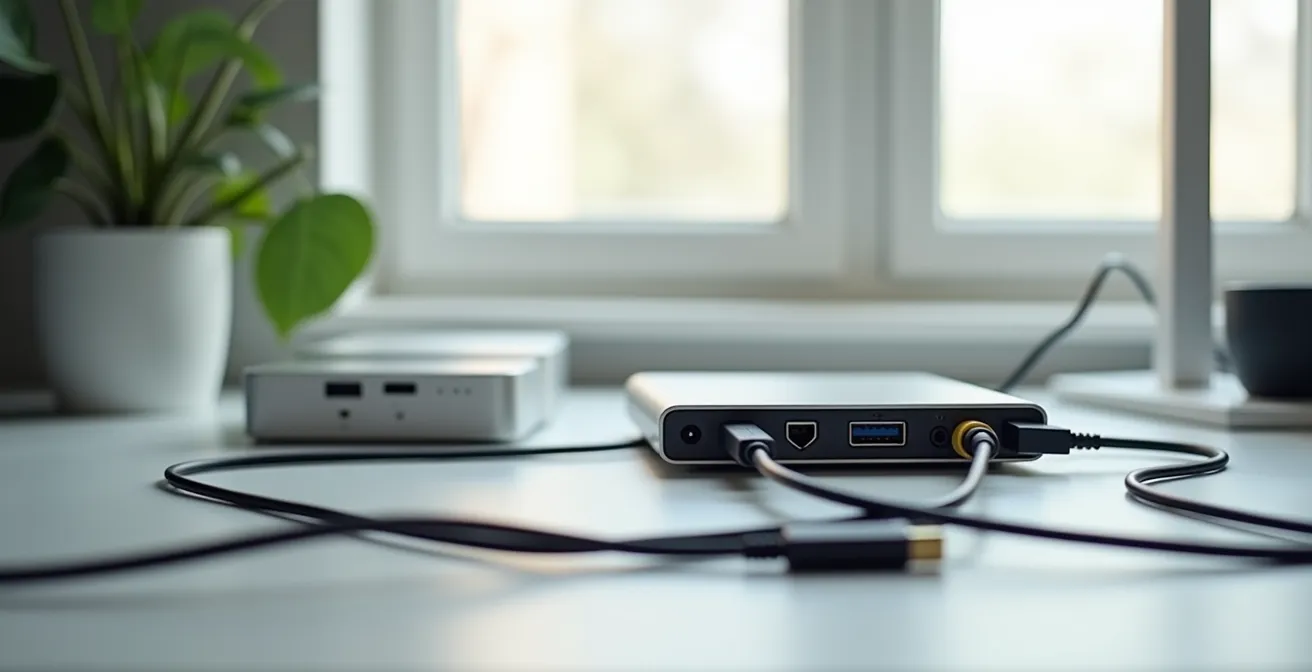
But what if you’re working with 6K footage or more than three camera angles? The bandwidth requirements quickly exceed what USB can offer, making Thunderbolt the only viable option for editing directly off an external drive without creating proxies first. Choosing the right external drive and connection is a strategic decision. For simple file transfers or backing up projects, a standard USB-C SSD is perfectly adequate and cost-effective. But for high-bandwidth, real-time external editing workflows, investing in a Thunderbolt-equipped ecosystem is essential to prevent your external connection from becoming the primary bottleneck in your entire system.
TBW Ratings: How Long Will Consumer SSDs Last Under Daily 4K Rendering?
When buying an SSD, most people focus on two numbers: capacity (GB/TB) and speed (MB/s). But for a video editor, there’s a third, equally important metric: endurance, measured in Terabytes Written (TBW). The TBW rating is the manufacturer’s guarantee for how much data can be written to the drive over its lifetime before the memory cells begin to degrade. For a regular user, this number is almost irrelevant. For a video editor constantly writing massive cache files, proxies, and render previews, it’s a direct indicator of the drive’s lifespan in a professional environment.
A common fear is “burning out” a consumer-grade SSD with a heavy 4K workflow. However, modern SSDs are far more resilient than you might think. For example, an industry analysis of SSD longevity reveals that a drive with a modest 600 TBW rating, subjected to a heavy 200 GB of writes every single day, would still last for over 8 years. For most content creators editing 1080p or even 4K video, a drive rated between 600-1200 TBW is more than appropriate. It’s only when you step into daily 8K or RAW workflows that you need to start looking at enterprise-grade drives with ultra-high endurance ratings of 1200 TBW or more.
A crucial factor that influences TBW is the drive’s capacity. As editing expert Larry Jordan explains, endurance is directly tied to the number of available flash memory cells.
The TBW rating is higher for larger capacity drives as they have more flash memory cells to write. For example, a typical 500GB SSD has a TBW of around 300, whereas 1TB SSDs usually have 600 TBW
– Larry Jordan, How To Estimate the Lifespan of an SSD
This creates a compelling argument for investing in a larger capacity drive, even if you don’t immediately need the space. A 2TB drive will not only provide more room for projects but will typically have double the TBW endurance of its 1TB counterpart, effectively doubling its professional lifespan for a marginal increase in cost. Therefore, when choosing an SSD for your cache or active projects drive, prioritizing a 1TB or 2TB model isn’t just about storage space—it’s a strategic investment in the long-term durability of your editing system.
Heatsink or Not: Do Fast NVMe Drives Need Cooling to Prevent Throttling?
NVMe drives are performance marvels, capable of transferring gigabytes of data in seconds. But this incredible speed generates a significant amount of heat, especially in the drive’s controller chip. When an NVMe drive gets too hot, it engages a self-preservation mechanism called thermal throttling. To prevent damage, the drive intentionally slows itself down—often dramatically—until temperatures return to a safe level. For a video editor in the middle of a large file transfer or a 4K render, this can mean watching your transfer speeds plummet from 5,000 MB/s to SATA-like speeds of 500 MB/s or less. This isn’t a hypothetical problem; it’s a very real bottleneck for any high-performance system.
So, is a heatsink necessary? For a drive that will only handle your OS and some applications, where usage is bursty and brief, you might get away without one, especially if your PC case has excellent overall airflow. However, for any drive that will be subjected to sustained workloads—like a media cache drive, a scratch disk, or a primary project drive—a heatsink is not a luxury, it’s a requirement. The sustained read/write operations during scrubbing, rendering, and exporting will inevitably push a bare drive into its thermal limits.
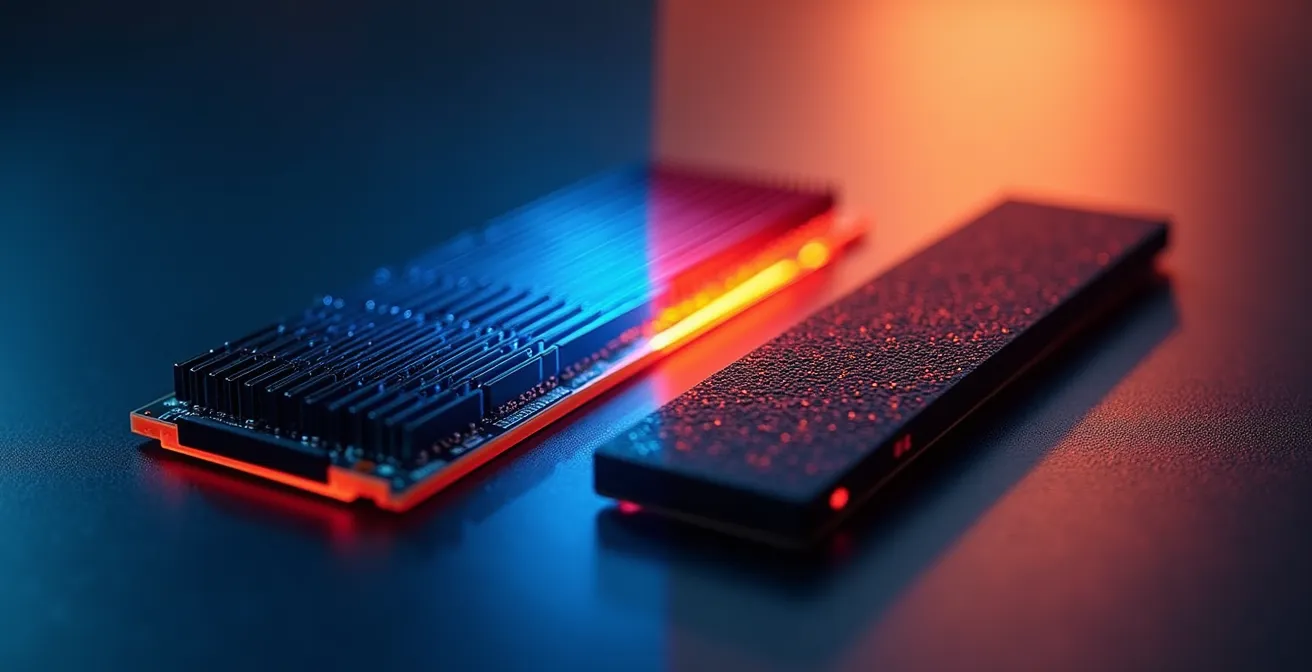
The good news is that cooling solutions are both effective and inexpensive. Many motherboards now come with built-in M.2 heatsinks, and aftermarket options are widely available. The impact is not trivial. Thermal testing data shows that a simple heatsink can make a massive difference. For instance, one study found that a 4mm heatsink reduced the controller temperature from 68.5°C to 46.9°C under load. An 8mm heatsink brought it down even further to 30°C. This temperature reduction directly translates to sustained performance, ensuring your drive delivers its advertised speeds when you need them most. Ignoring the thermal management of your fastest component is a classic mistake that can completely undermine your investment in high-speed storage.
How to Batch-Process 50 Photos on Your Phone in Under 10 Minutes?
While this article focuses on high-end desktop performance, the modern content creator’s workflow rarely starts there. Footage is often captured on a variety of devices, most notably smartphones, which are now capable of shooting high-quality 4K video. The title’s focus on photos is a bit narrow; the real challenge is efficiently moving large video assets from your mobile device into your desktop’s data pipeline without creating a new bottleneck. Manually connecting your phone via a cable and dragging files is slow, clunky, and prone to interruption.
A far more streamlined approach involves leveraging the cloud and fast networking. The goal is to make your mobile-captured footage appear on your editing machine almost instantly, ready for processing. This is achieved by creating an automated asset-ingestion system. Services like Dropbox Smart Sync or OneDrive Files On-Demand are perfect for this. You can set your phone’s camera roll to automatically upload to a specific cloud folder. On your desktop, that same folder is synced, but with on-demand files, the content isn’t actually downloaded until you need it, saving local disk space.
When you’re ready to start a project, you simply open the cloud folder on your PC, select the required files, and they download at the full speed of your internet connection. For maximum speed, this process should leverage a fast local network (Wi-Fi 6 or a direct Ethernet connection) and a fast destination drive on your PC (your dedicated projects SSD). This workflow transforms asset transfer from a tedious manual task into a seamless background process. You can even take it a step further by using automated tools on your desktop to watch that sync folder and automatically generate proxy files for any new video that appears, making your footage edit-ready before you even open your NLE.
Why Your Nightly Cloud Backup Fails Even with “Fast” Internet?
You have a “fast” internet connection, but your nightly cloud backups for video projects consistently fail or take days to complete. The issue isn’t just your internet speed; it’s the sheer volume of data involved in video editing. A single 4K project can easily run into hundreds of gigabytes or even terabytes. Uploading this much data is a challenge for any consumer-grade internet connection, which typically have much slower upload speeds than download speeds. This data-volume problem is a significant risk, leaving your work vulnerable to drive failure.
The professional solution to this is rooted in the classic 3-2-1 backup strategy: have at least 3 copies of your data, on 2 different types of media, with 1 copy located off-site (in the cloud). The key to making this work for video is intelligent data management, not just raw upload power. Instead of trying to back up everything all at once, you must be strategic. The first step is to differentiate between irreplaceable source media and disposable generated files. Your original camera footage is gold; cache files and render previews can always be regenerated.
For the critical off-site backup, size matters. This is where your proxy workflow provides a dual benefit. As experts from Frame.io note in their workflow guides, for projects with massive source files (like 8K RAW), editors can work with much smaller proxy files, sometimes as low as 720p. While this is for editing performance, the same logic applies to backups. A 720p ProRes Proxy file is a fraction of the size of an 8K RAW file. Backing up these smaller, yet still frame-accurate, proxy files to the cloud can be a life-saver. In a disaster recovery scenario where your source media is lost, having a complete, organized project with cloud-backed proxies allows you to at least reconstruct the entire edit, even if you need to recapture or find alternative B-roll for the final conform. It transforms a total loss into a recoverable situation, solving the “backup failure” problem by strategically reducing the amount of data that needs to be sent off-site.
Key Takeaways
- Systemic Bottlenecks: Your editing speed is limited by the weakest link, not your fastest component. Focus on a balanced system.
- Tiered Storage is King: Use a fast NVMe for your OS/Cache, and a separate SSD (NVMe or SATA) for active projects to avoid I/O contention.
- Heat Kills Performance: Fast NVMe drives require heatsinks for sustained workloads like rendering to prevent thermal throttling.
How to Set Up a Failover Internet Connection for Your Home Office?
We’ve meticulously built a powerful local data pipeline, from codecs to cooling. However, the modern video editor is no longer an island. The final, and increasingly critical, link in the chain is your connection to the outside world: the internet. A stable, reliable internet connection has evolved from a convenience to a mission-critical utility. The question isn’t just “how to set up a failover,” but “why is a resilient connection now an integral part of your editing hardware?”
Cloud collaboration platforms like Frame.io, remote client review sessions, and the delivery of final masters all depend on it. A dropped connection during a multi-gigabyte upload to a client can mean a missed deadline and a damaged professional reputation. The nightly cloud backups we discussed are useless if your connection is down. This is where the concept of connection resiliency becomes paramount. While setting up a true automated failover connection with dual-WAN routers can be technical, the strategic imperative is clear: you cannot have a single point of failure in your ability to connect and deliver.
For many home-based professionals, a simple yet effective solution is having a secondary connection method on standby, such as a 5G mobile hotspot. It may not be as fast as your primary fiber or cable connection, but it’s more than capable of handling critical emails, continuing a low-bandwidth client review, or, most importantly, re-initiating a failed upload. Thinking of your internet connection as part of your core infrastructure—just as important as your storage or GPU—is the final step in building a truly professional and resilient editing studio. It completes the data pipeline, ensuring your work can not only be created efficiently but also delivered reliably.
By moving beyond a simple hardware comparison and embracing a holistic view of your entire data pipeline, you can build a system that delivers the smooth, responsive 4K editing performance you need. The next logical step is to audit your current setup and identify the weakest link. Start by implementing a tiered storage strategy to ensure your drives are working efficiently, not against each other.