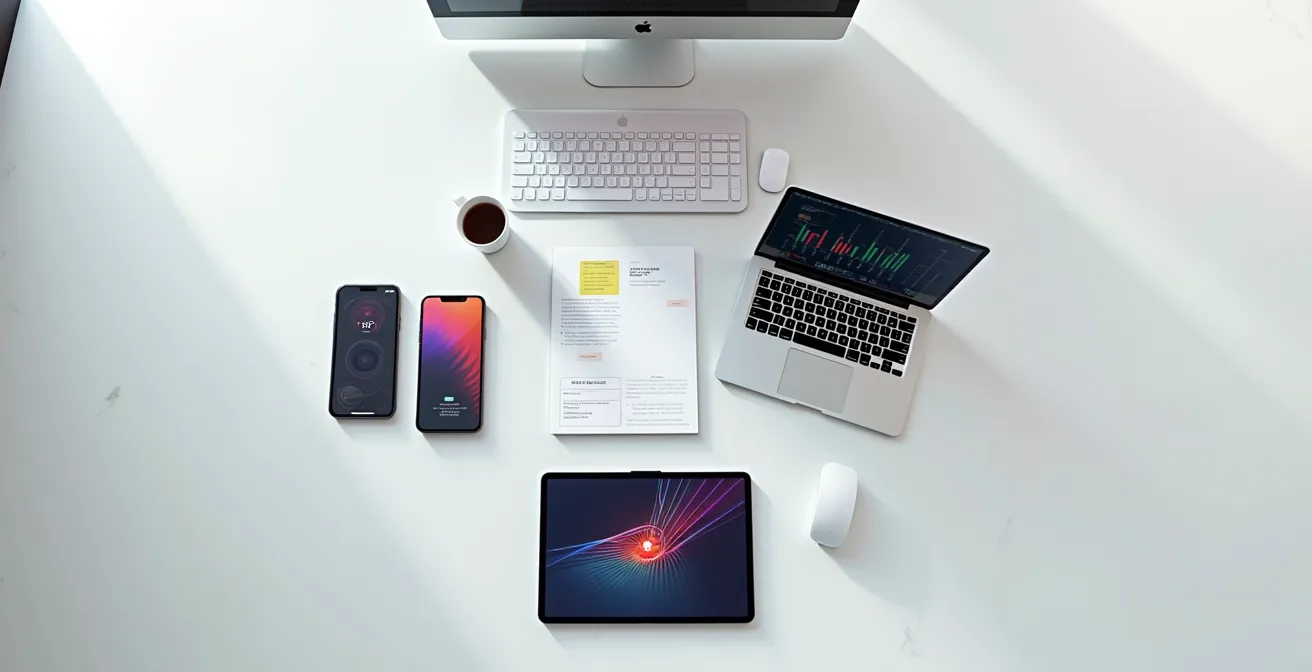
True cross-platform freedom isn’t achieved with more apps; it’s unlocked by mastering the universal technology standards that unite your devices.
- Avoiding single-brand ecosystems prevents the “Apple Tax” on premium-priced hardware and proprietary accessories.
- Understanding protocols like USB-C Power Delivery (PD) and Programmable Power Supply (PPS) is the key to fast, safe, and universal charging for all your gadgets.
Recommendation: Stop searching for the “best sync app” and start building a bespoke ecosystem based on open standards for charging, data, and security.
For any freelance professional juggling a mix of Apple and Android devices, the daily struggle is real. It’s the small but constant points of friction: airdropping a file from your iPhone to a colleague, only to remember your Windows laptop can’t receive it; fumbling with a tangle of different charging cables; or manually retyping a password from your phone to your tablet. The standard advice often involves clunky workarounds like emailing files to yourself or relying on a patchwork of cloud services. Many believe the only path to seamless productivity is to surrender to a single brand’s “walled garden.”
But this thinking is a trap. It forces you to compromise, choosing devices based on brand rather than what’s best for the task. The conventional wisdom focuses on software fixes for what are often hardware and protocol-level problems. What if the key to a truly optimized multi-device ecosystem wasn’t another app, but a deeper understanding of the technologies that govern them? The most productive users don’t just find workarounds; they build a superior, open ecosystem by mastering the underlying standards.
This guide provides a cross-platform consultant’s approach to interoperability. We will deconstruct the hidden costs of brand loyalty and provide technical, accessible hacks to create true harmony. We’ll move beyond basic file sharing to cover universal charging strategies, optimized communication tools, and robust security practices that work flawlessly across your entire device arsenal, empowering you to build a system that is more efficient and cost-effective than any single-brand setup.
This article provides a detailed roadmap for achieving true cross-platform synergy. Explore the sections below to master each aspect of your bespoke digital ecosystem, from cost analysis to advanced security protocols.
Summary: A Guide to Unifying Your Apple and Android Tech
- Why Relying on a Single Brand Ecosystem Costs You 30% More Annually?
- How to Configure a Universal Clipboard Between Windows and iOS in 5 Steps?
- USB-C or Proprietary Cables: Which Charger Setup Is Best for Frequent Travelers?
- The Mistake That Ruins Your Tablet Battery Life When Using Laptop Chargers
- When to Upgrade Your Main Device: The 3 Market Signals to Watch
- Instant Messaging or Email: Which Tool Is Killing Your Team’s Productivity?
- Why Your Bluetooth Audio Lags While Gaming and How to Fix It?
- Password Manager vs. Notebook: Which Is Actually Safer for Banking Logins?
Why Relying on a Single Brand Ecosystem Costs You 30% More Annually?
The allure of a single-brand ecosystem, like Apple’s, is its promise of seamless integration. Your watch, phone, and laptop communicate effortlessly. However, this convenience comes at a significant, often hidden, cost. While the “30% more” figure is an industry estimate, the financial penalty of brand loyalty manifests in several concrete ways. This is not an accident; it’s a core business strategy known as ecosystem lock-in. By designing products that work best with each other, companies foster a powerful brand loyalty that allows them to maintain premium pricing across their entire product line.
This “Apple Tax” extends far beyond the initial purchase price of an iPhone or MacBook. It permeates the entire ownership experience. Need a new charger? A proprietary cable often costs more than a universal USB-C equivalent. Want to connect your device to a monitor? You might need a specific, branded dongle. As one analysis of Apple’s ecosystem lock-in highlights, this seamless integration is a deliberate feature to justify premium prices and discourage users from switching. This financial burden is the trade-off for convenience.
Adopting a strategic agnosticism—choosing the best device for the job regardless of brand—breaks this cycle. It forces you to build an ecosystem based on universal standards rather than proprietary connections. While this requires a bit more initial setup, it pays long-term dividends in cost savings on hardware, accessories, and repairs, while giving you the freedom to choose best-in-class products from any manufacturer.
How to Configure a Universal Clipboard Between Windows and iOS in 5 Steps?
One of the most significant points of interoperability friction for a freelancer is the simple act of moving text or a link from a phone to a computer. The lack of a universal clipboard is a constant, low-grade productivity killer. While Apple’s Universal Clipboard works magically between its own devices, a robust equivalent now exists for Windows and mobile operating systems, turning your disparate devices into a single, cohesive workspace. Adopting a protocol-first mindset means leveraging these built-in or first-party solutions before resorting to a patchwork of third-party apps.
This visualization represents the goal: data flowing seamlessly and invisibly between your different devices, creating a unified digital environment regardless of the brand on the case.

Achieving this is surprisingly straightforward using native tools like Microsoft’s Phone Link. It creates a secure bridge between your devices, enabling not just clipboard sharing but also notifications, photo access, and calls directly on your PC. Here’s a simple guide to setting it up.
Your Action Plan: Configure a Universal Clipboard
- Install and Launch: On your Windows PC, open the Microsoft Store and install the “Phone Link” app. On your iPhone or Android device, install the corresponding “Link to Windows” app from the App Store or Google Play.
- Initiate Linking: Open the Phone Link app on your PC and the Link to Windows app on your phone. On your PC, select your phone’s operating system and follow the prompts to generate a QR code.
- Scan and Authenticate: Use your phone’s camera to scan the QR code displayed on your PC screen. You may need to sign in to the same Microsoft account on both devices to complete the authentication.
- Grant Permissions: Your phone will ask you to grant several permissions, such as access to contacts, photos, and the ability to run in the background. These are essential for the features to work correctly.
- Enable Cross-Device Paste: In the Phone Link settings on your PC, navigate to “Features” and ensure that “Cross-device copy and paste” is toggled on. This is the key setting that activates the universal clipboard.
USB-C or Proprietary Cables: Which Charger Setup Is Best for Frequent Travelers?
For a frequent traveler, every gram and cubic centimeter in their bag counts. The days of carrying a brick for your laptop, another for your tablet, and a third for your phone are over. The key to a minimalist and efficient travel setup is embracing a single, universal standard: USB-C Power Delivery (PD). Ditching proprietary cables like Apple’s Lightning in favor of a full USB-C loadout allows one high-quality charger and cable to power every device you own.
The technological leap that makes this possible is Gallium Nitride, or GaN. This material allows manufacturers to create chargers that are significantly smaller, lighter, and more efficient than traditional silicon-based models. In fact, modern GaN technology chargers are up to 40% smaller than their predecessors while delivering the same or even higher power. For a traveler, this means a single, palm-sized charger can replace multiple bulky power bricks, saving critical space and weight.
However, not all USB-C chargers are created equal. To build a truly universal setup, you must adopt a protocol-first mindset. As the technical team at Products.org advises in their 2025 charging guide:
Look for chargers that explicitly list PD and PPS. PPS is especially useful for phones and modern devices because it allows precise voltage adjustments that reduce heat and improve efficiency. Gallium nitride chargers are smaller and run cooler than older silicon designs while delivering similar or higher power. They’re a practical way to consolidate multiple bricks into one compact unit.
– Products.org Technical Team, USB-C Charging Guide 2025
Investing in a single, high-wattage GaN charger that supports both PD and the Programmable Power Supply (PPS) standard is the ultimate travel hack. It ensures that every device, from your laptop to your earbuds, receives the fastest, safest, and most efficient charge possible from one compact source.
The Mistake That Ruins Your Tablet Battery Life When Using Laptop Chargers
The convenience of USB-C has led to a common and damaging mistake: assuming any high-wattage laptop charger is safe for all your smaller devices, like a tablet or smartphone. While a 100W charger won’t “fry” a phone—modern devices only draw the power they need—the real danger to your battery’s long-term health lies in protocol mismatch and the resulting heat generation. Using a powerful charger that lacks the right communication standard can lead to inefficient charging cycles that slowly degrade your battery’s capacity.
This is where the Programmable Power Supply (PPS) protocol becomes critical. Standard USB Power Delivery (PD) chargers adjust voltage in fixed steps. If a tablet needs 9.3V, a basic PD charger might supply 10V, with the excess energy dissipated as heat. This heat is the primary enemy of lithium-ion batteries. The thermal imaging visualization below illustrates how heat can concentrate around the charging port, an indicator of charging inefficiency.

PPS solves this problem. As a study on the impact of protocol mismatch explains, PPS allows the charger to adjust voltage and current in tiny, continuous increments. This enables the charger to perfectly match the battery’s real-time requirements, drastically reducing wasted energy and heat generation. This not only speeds up charging but, more importantly, protects the long-term health and lifespan of your device’s battery. The mistake isn’t using a powerful charger; it’s using one that isn’t smart enough.
When to Upgrade Your Main Device: The 3 Market Signals to Watch
In a world of yearly device refreshes and aggressive marketing, deciding when to upgrade your primary work device can feel overwhelming. Upgrading too soon is a waste of money, but waiting too long can leave you with a slow, insecure device that hinders your productivity. The key is to move beyond marketing hype and make a strategic, data-driven decision. Instead of chasing minor incremental updates, a power user should watch for three key market signals that indicate a genuine leap in capability or value.
These signals help you identify the true value inflection point, where the performance and features of a new device justify the cost of replacing your current one. One critical factor in this calculation is depreciation. For instance, tech communities consistently report that iPhone users get 60-70% of their purchase price back on resale after two years, compared to just 30-40% for many high-end Android phones. Factoring this into your upgrade calculation is essential for managing the total cost of ownership across your bespoke ecosystem.
Making a smart upgrade decision requires a disciplined approach. You must track not just new features, but the underlying technological and regulatory shifts that will impact your workflow for years to come.
Your Checklist: The 3 Key Upgrade Signals
- Connectivity Standard Leaps: Don’t upgrade for a slightly faster processor. Upgrade when there’s a fundamental change in connectivity, such as the widespread adoption of Wi-Fi 7 or the integration of Ultra-Wideband (UWB) for precise spatial awareness between devices. These are game-changers for workflow.
- Regulatory Mandates and Convergence: Pay close attention to regulations like the EU’s Digital Markets Act. When governments force hardware convergence (like the mandatory switch to USB-C) or software interoperability (like requiring support for RCS messaging), upgrading *after* these changes are implemented ensures maximum future-proofing and compatibility.
- The Value Inflection Point: Actively track your current device’s resale value and compare its depreciation rate against the performance-per-dollar of new models. The ideal time to upgrade is when your device’s value drop accelerates and the performance gain from a new model offers a clear return on investment.
Instant Messaging or Email: Which Tool Is Killing Your Team’s Productivity?
The “green bubble vs. blue bubble” debate is more than just a social phenomenon; for a freelance professional collaborating with diverse clients, it’s a genuine productivity bottleneck. When your primary messaging tool is locked to a single platform like Apple’s iMessage, communication with the rest of the world becomes fragmented and inefficient. This is a direct consequence of the ecosystem lock-in strategy, which affects a huge number of users; one report notes that about 155 million users in the US alone use an iPhone, many of whom are deeply integrated into services like iMessage that intentionally exclude other platforms.
Email, while universal, is too slow and formal for the rapid-fire communication modern projects require. The true productivity killer isn’t one tool or the other, but the platform fragmentation itself. Constantly switching between iMessage, SMS, WhatsApp, and Slack to accommodate different contacts creates cognitive overhead and wastes valuable time. The solution is to adopt a unified messaging strategy that transcends device brands. The table below outlines the primary options for a cross-platform team or professional.
| Solution Type | Platform Support | Security Model | Team Adoption Rate |
|---|---|---|---|
| Native Apps (iMessage/RCS) | Platform-locked | End-to-end encrypted | High friction for mixed teams |
| Unified Inbox (Beeper/Texts) | All platforms | Bridge-based encryption | Seamless adoption |
| Traditional (Slack/Teams) | Universal | Server-based | Standard enterprise |
For a freelancer, “Unified Inbox” solutions represent the most powerful approach. Apps like Beeper consolidate all your chat services—iMessage, WhatsApp, Signal, etc.—into a single application that works on every device. This eliminates the need to switch apps, reduces friction, and allows you to communicate seamlessly with any client or collaborator, regardless of their device choice. It’s the ultimate expression of the protocol-first mindset applied to communication.
Why Your Bluetooth Audio Lags While Gaming and How to Fix It?
You’ve invested in premium wireless headphones, but when you switch from your phone to your laptop for a video call or gaming session, you’re suddenly plagued by frustrating audio lag. This delay, known as latency, is a common cross-platform issue that has less to do with your headphones and more to do with a mismatch in Bluetooth audio codecs. A codec is an algorithm that compresses and decompresses digital audio data for wireless transmission. Different platforms and devices support different codecs, and when they don’t align perfectly, they default to a basic, higher-latency option.
This is a classic interoperability problem. The core issue is that codec limitations cause most cross-platform audio issues, with iOS devices largely limited to the basic SBC and slightly better AAC codecs, while the Android ecosystem offers broad support for superior, low-latency options like Qualcomm’s aptX and Sony’s LDAC. When an aptX-HD-capable headset connects to an iPhone, it’s forced to fall back to the lower-quality AAC codec, which may introduce noticeable lag in time-sensitive applications like gaming.
Fixing this audio lag requires bypassing or standardizing the codec used between your source device and headphones. Fortunately, there are several effective technical solutions to this problem:
- Use a Dedicated Transmitter: The most reliable fix is to use a dedicated USB-C Bluetooth audio transmitter that supports a low-latency codec like aptX LL. Plugging this into your laptop or tablet bypasses the device’s internal Bluetooth chip and its codec limitations, creating a direct, high-quality audio stream to your headphones.
- Enable Multipoint Bluetooth: If your headphones support “multipoint” connectivity, enable it. This feature allows the headphones to maintain an active connection to two source devices (e.g., your phone and laptop) simultaneously, enabling you to switch audio sources seamlessly without re-pairing and reducing the chance of codec negotiation errors.
- Match Codec Support: Before buying new headphones, become a protocol detective. Check the detailed specifications of both your primary devices and the headphones. Ensure they share a common high-quality, low-latency codec. If they don’t, choose a headset that at least excels with the best codec your main device supports.
Key Takeaways
- Mastering protocols, not just apps, is the key to unlocking true cross-platform productivity and freedom.
- A unified charging strategy centered on USB-C with Power Delivery (PD) and PPS is crucial for the health and longevity of all your devices.
- For power users, strategic device agnosticism consistently beats brand loyalty in terms of cost, flexibility, and overall performance.
Password Manager vs. Notebook: Which Is Actually Safer for Banking Logins?
In a multi-device world, securing sensitive information like banking logins presents a paradox. A physical notebook is immune to online hacking but is incredibly inconvenient and vulnerable to being lost, stolen, or destroyed. A digital password manager syncs effortlessly across your iPhone, Android tablet, and Windows PC, but requires you to place immense trust in a third-party company. The debate over which is “safer” misses the point. The most secure system is the one that is both robust *and* seamlessly integrated into your daily workflow, as a clunky process is one that will eventually be abandoned for convenience.
For the modern freelance professional, the answer lies in choosing a solution that works flawlessly across their entire bespoke ecosystem. The ideal password manager must offer best-in-class encryption while providing native apps for every platform you use. Leaders in this space, like Bitwarden and 1Password, are built from the ground up for cross-platform compatibility, ensuring your digital vault is always available, whether you’re on iOS, Android, Windows, or macOS.
Furthermore, the landscape is evolving. Passkeys, which use cryptographic keys stored on your device instead of memorized passwords, are set to eliminate phishing risks. While synchronization of passkeys between Apple and Google ecosystems is still a work in progress, they represent the future of authentication. For users seeking maximum control today, self-hosted solutions offer a compelling middle ground. Using a manager like Bitwarden with a self-hosted server (like Vaultwarden) gives you the cloud-like convenience of a commercial service with the Fort Knox security of a physical notebook, as you retain total control over where your encrypted data is stored.
To put these principles into practice, start by auditing your current device setup. Identify the single greatest point of friction in your daily workflow and apply the relevant strategy from this guide to resolve it this week. Building a truly seamless ecosystem is an iterative process of optimization.
Frequently Asked Questions About Cross-Device Management
What’s the difference between PD and PPS charging?
PPS (Programmable Power Supply) is an advanced extension of the USB Power Delivery (PD) standard. While PD adjusts power in fixed voltage steps, PPS allows for ultra-fine, continuous adjustments in small increments. This enables the charger to more precisely match a device’s battery requirements, reducing heat, improving efficiency, and preserving long-term battery health. Think of PPS as PD’s smarter, more efficient cousin.
Do I need special cables for high-wattage charging?
Yes. To safely and effectively deliver power at 100W or higher, your USB-C to USB-C cable must be electronically marked (e-marked) and certified for PD 3.0 or a later version. A standard, non-certified cable will not be able to handle the high power and will limit the charging speed, regardless of how powerful your charger is.
Can a higher wattage charger damage my device?
No. Buying a 100W charger will not damage a device that only needs 20W. Modern devices and chargers engage in a “handshake” where the device communicates its power requirements to the charger. The charger then supplies only the amount of power that the device requests, ensuring a safe charging process.
What’s the advantage of self-hosted password managers?
Self-hosted solutions, such as running Vaultwarden for a Bitwarden client, offer the perfect blend of cloud convenience and physical security. You get the seamless synchronization across all your devices that a cloud service provides, but you maintain absolute control over your encrypted data because it is stored on a server you own and manage, rather than on a third-party company’s servers.
How do passkeys differ from passwords?
Passkeys are a more secure replacement for passwords. Instead of a secret you have to remember, a passkey uses a unique cryptographic key pair that is stored on your device. This makes them resistant to phishing attacks, as there is no secret for a hacker to steal. However, seamless synchronization of passkeys between the Apple and Google ecosystems is still a developing area.
Which password manager offers the best cross-platform support?
Currently, Bitwarden and 1Password are widely regarded as the leaders in cross-platform compatibility. They offer robust, feature-rich applications that sync flawlessly and securely across nearly every major operating system, including iOS, Android, Windows, macOS, and Linux, making them ideal for managing a mixed-device environment.