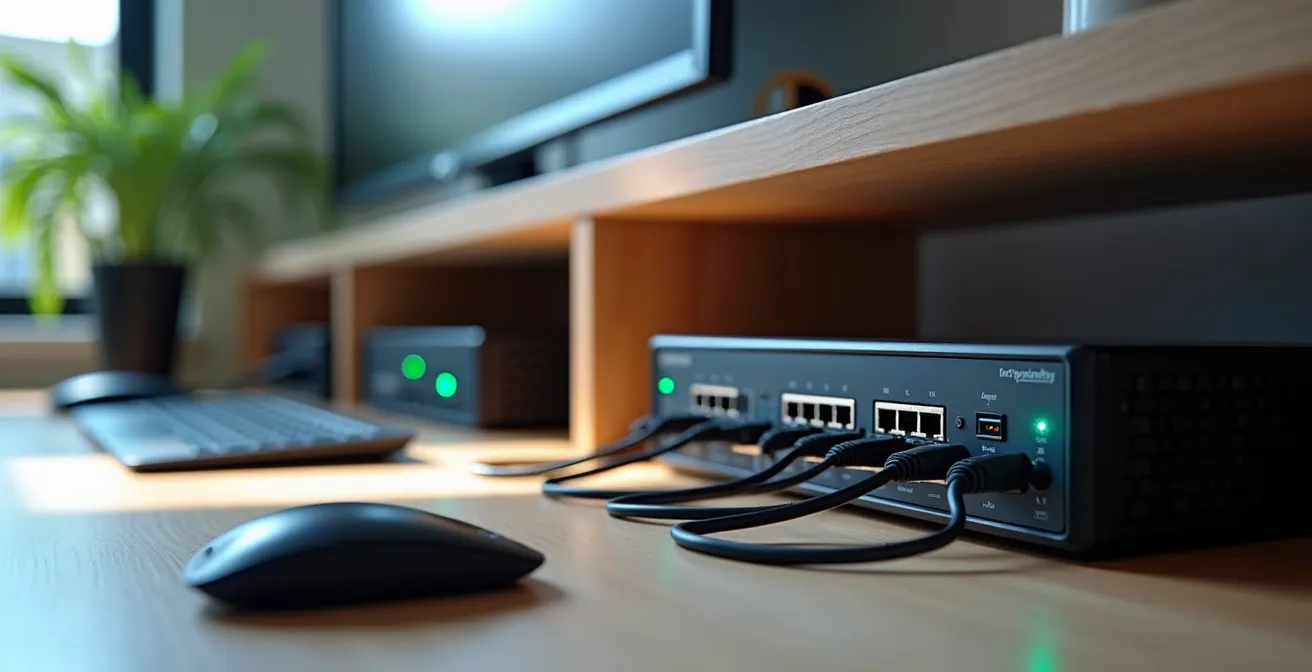
Losing internet during a client call isn’t an inconvenience; it’s a business liability. A proper failover setup is a risk management strategy that ensures you remain professional and connected, no matter what.
- For most professional remote work involving VPNs or secure sessions, a pure Failover configuration is superior to Load Balancing.
- Your backup connection doesn’t have to be a second fiber line; an affordable 5G/LTE plan or even your existing smartphone can provide robust redundancy.
Recommendation: Start by identifying your single points of failure, from your ISP to your modem’s ventilation, and use monitoring tools to diagnose your primary connection’s true stability.
The video call freezes. Your presentation glitches. You drop from the client meeting seconds before closing the deal. For a remote professional, this isn’t a technical hiccup; it’s a direct threat to your credibility and income. The common advice—”get a backup internet”—is dangerously simplistic. It overlooks the nuances of why connections fail and how a poorly configured backup can be just as useless as no backup at all.
As a reliability engineer, I approach this problem not as a consumer but as a business continuity planner. The goal isn’t just to have a second connection; it’s to build an automated, resilient system that anticipates and neutralizes failure points before they impact your work. This involves understanding the financial risks of downtime, choosing the right redundancy mode for your specific tasks, and diagnosing issues that go far beyond your ISP, from modem overheating to environmental interference.
This guide abandons the generic advice. We will adopt an engineering mindset to construct a truly fail-proof home office network. We will quantify the risks, dissect the technology choices, and provide you with the diagnostic tools to not only fix problems but to hold your service providers accountable. This is your blueprint for achieving professional-grade network reliability.
To build this resilient network, we will systematically address each critical component. The following sections break down everything from the financial imperative for redundancy to the practical steps for configuration, diagnostics, and even navigating physical installation constraints.
Summary: A Guide to Fail-Proof Home Office Connectivity
- Why a Single ISP Cut Could Cost You a Client Contract?
- How to Configure Your Router to Auto-Switch to USB Tethering on Failure?
- Load Balancing or Failover: Which Dual-WAN Mode Is Best for Home Use?
- The Overheating Mistake That Causes Random Modem Reboots
- How to Monitor Packet Loss over 24 Hours to Prove Your ISP Is At Fault?
- Why a Single Tree Branch Can Drop Your Zoom Call Every 3 Minutes?
- How to Download Essential Maps and Docs for Areas with Zero Signal?
- How to Navigate Landlord Restrictions When Installing Fiber Optics?
Why a Single ISP Cut Could Cost You a Client Contract?
The true cost of internet downtime is rarely measured by the monthly ISP bill. For a remote professional, it’s measured in lost opportunities, damaged reputation, and breached client trust. Every dropped presentation, failed file transfer, or missed deadline erodes the professional image you’ve worked hard to build. In high-stakes industries, a single critical outage isn’t just an embarrassment; it’s a potential contract violation. The financial implications are staggering, with enterprise connectivity studies indicating that downtime can cost a minimum of $500 per minute.
This is a fundamental issue of risk mitigation. Relying on a single ISP, no matter how reliable they claim to be, introduces a single point of failure into your business operations. A construction crew severing a fiber line down the street or a localized provider outage is all it takes to bring your workday to a halt. The question is not *if* your connection will fail, but *when*—and what systems you have in place to ensure the disruption is invisible to your clients.

The goal is to achieve seamless continuity. A properly configured failover system makes the switch to a backup connection so fast that you might only notice it from an administrator alert. A case study documented a professional who implemented a dual-WAN failover using a primary cable connection and a Verizon 5G backup. During multiple outages, including one during a critical live-streamed event, the system switched to the backup automatically and so quickly that guests and clients never noticed the primary connection had failed. This is the standard of professional reliability you should be aiming for.
How to Configure Your Router to Auto-Switch to USB Tethering on Failure?
One of the most accessible and cost-effective backup solutions is already in your pocket: your smartphone. Most modern routers with a USB port support tethering, allowing you to use your phone’s cellular data as a secondary internet source. This isn’t a manual process of turning on a hotspot; it’s an automated failover rule you configure once. When your router detects that the primary WAN (your main fiber or cable connection) is down, it automatically reroutes all traffic through the tethered phone.
The configuration process typically involves defining your primary connection as “Tier 1” and the USB mobile connection as “Tier 2” within your router’s WAN settings. You also set a monitoring interval, which tells the router how often to check the primary connection’s health. A setting between 10-30 seconds ensures a rapid switchover, minimizing any noticeable downtime. This setup transforms your existing phone and data plan into a powerful business continuity tool.
Action Plan: Configuring USB Tethering Failover
- Connect your smartphone to your router’s USB port and ensure USB tethering is enabled in your phone’s settings.
- Access your router’s administration page and navigate to the WAN (Wide Area Network) or Internet settings.
- Configure the secondary or backup WAN to use the “USB/Mobile” or “Tethering” option as the connection type.
- Set up the failover rules, designating your primary wired WAN as Tier 1 and the USB mobile connection as Tier 2.
- Configure health check or monitoring intervals to detect primary WAN failure within 10-30 seconds for a quick switch.
Before relying on this, it’s critical to verify two things: first, that your phone’s data plan explicitly allows tethering, and second, that it doesn’t severely throttle speeds after a certain usage cap. A successful real-world implementation saw a home office use a UniFi Dream Machine Pro to failover to a Verizon 5G router, which operates on the same principle as a tethered phone. The entire setup took less than an hour, providing enterprise-grade redundancy for an additional monthly cost of just $25-$35.
Load Balancing or Failover: Which Dual-WAN Mode Is Best for Home Use?
A dual-WAN router is the heart of a redundant network, but simply plugging in two internet sources is not enough. You must choose how the router uses them: Load Balancing or Failover. While “Load Balancing” sounds superior—using both connections at once for more speed—it can be a trap for the remote professional. It works by distributing different data sessions across both connections. This is fine for web browsing or torrenting but can be catastrophic for work applications.
Many professional tools, especially corporate VPNs, secure banking portals, and trading platforms, rely on “stateful connections.” This means they expect all communication for a single session to come from the same IP address. When a load-balancing router sends some packets through ISP A and others through ISP B, the server sees traffic from two different IPs and terminates the session for security reasons. This results in constant, frustrating disconnects. For this reason, a pure Failover mode is almost always the correct choice for a professional home office. In this mode, the second connection remains idle, ready to take over instantly and completely if the primary one fails, ensuring your IP address remains stable and your sessions stay active.
This table breaks down the best mode for different professional profiles, highlighting why one size does not fit all.
| User Profile | Recommended Mode | Key Benefits | Potential Issues |
|---|---|---|---|
| Corporate VPN User | Pure Failover | Maintains stable IP, no session drops | Backup WAN remains idle |
| Content Creator/Streamer | Load Balancing | Maximum aggregate bandwidth | May cause issues with stateful connections |
| Day Trader | Failover with low latency primary | Consistent latency, reliable backup | No bandwidth aggregation |
| General Home Office | Failover with policy routing | Critical apps prioritized, cost-effective | Requires more complex setup |
A more advanced hybrid approach is “policy-based routing.” As detailed in a case study, a user with a UniFi Dream Machine Pro configured work-related traffic (from a specific VLAN) to exclusively use the primary, stable fiber connection (Failover), while non-critical entertainment traffic was allowed to be load-balanced across both connections for maximum speed. This provides the best of both worlds: rock-solid stability for work and maximum bandwidth for leisure.
The Overheating Mistake That Causes Random Modem Reboots
You’ve invested in a dual-WAN setup, but your connection still drops randomly. You blame the ISP, but the fault may lie closer to home: on your modem shelf. Networking equipment, especially high-performance modems and routers, generates a significant amount of heat. When these devices are stacked directly on top of each other or crammed into a poorly ventilated cabinet, they can suffer from thermal throttling or, worse, execute a protective reboot. These random reboots manifest as inexplicable, short-lived internet outages.
This is a classic environmental failure point that is often overlooked. Heat is the enemy of electronic components, and reliability studies consistently show that equipment operating above 40°C (104°F) experiences 50% higher failure rates. Simply providing adequate airflow can dramatically improve the stability of your entire network. Never stack your modem, router, and switch. Ensure there are at least two inches of open space around each device for passive convection cooling to work.
For a more robust solution, consider these simple but effective thermal management techniques:
- Elevate Equipment: Place devices on small rubber feet or a wire stand to allow air to flow underneath, one of the hottest areas.
- Clear Vents: Use compressed air monthly to clear dust from all ventilation holes. Dust acts as an insulator, trapping heat.
- Passive Heatsinks: For notoriously hot devices, small, self-adhesive aluminum heatsinks (like those used for Raspberry Pi) can be attached to the hottest spots on the casing.
- Active Cooling: In extreme cases, like a sealed cabinet, adding a silent, USB-powered fan aimed at the equipment can provide the necessary active airflow to keep temperatures in a safe operating range.
How to Monitor Packet Loss over 24 Hours to Prove Your ISP Is At Fault?
Your connection feels slow. Zoom calls stutter. You suspect your ISP isn’t delivering the service you pay for, but calling support often leads to a frustrating loop of “reboot your modem.” To resolve persistent issues, you need to move from subjective complaints to objective data. The key is to perform data-driven diagnostics using tools that monitor your connection’s health over time, specifically looking for packet loss and latency spikes.
Tools like PingPlotter or MTR (My TraceRoute) are invaluable for this. Unlike a simple ping, they continuously test the connection to a stable target (like Google’s DNS at 8.8.8.8) and map out every “hop” your data takes between your computer and the destination. By running this test for 24-48 hours, you can build a clear picture of your connection’s stability. If the report shows consistent packet loss starting at a specific IP address that belongs to your ISP, you now have irrefutable evidence that the problem is within their network, not your home setup.
A systematic monitoring process will provide the proof you need for effective escalation:
- Install PingPlotter or MTR on a wired workstation.
- Configure the tool to ping a reliable public server (e.g., 8.8.8.8) every 5-10 seconds.
- Let the test run continuously for at least 24 hours to capture patterns at different times of day.
- Export the results as a graph or report that clearly shows the percentage of packet loss at each hop.
- When contacting your ISP, bypass level-1 support by stating: “My MTR logs show X% packet loss starting at your router with the IP address [ISP’s router IP] over the past 24 hours. I need to open a ticket with your network engineering team.”
This approach was used effectively in a home office setup that experienced intermittent issues. By running monitoring tools, the user confirmed their backup connection was stable while the primary one was not. The collected data clearly showed packet loss originating within the primary ISP’s infrastructure, enabling them to bypass the support script and get the issue escalated to engineers who could actually fix the underlying problem.
Why a Single Tree Branch Can Drop Your Zoom Call Every 3 Minutes?
When using a wireless connection as your primary or backup link—such as 5G, 4G/LTE, or satellite—your environment becomes a major factor in reliability. Unlike a shielded fiber or cable line, wireless signals are susceptible to physical obstructions and atmospheric conditions. The most common culprit is a poor Line of Sight (LoS) between your receiver and the cellular tower or satellite.
Something as seemingly minor as a single tree branch swaying in the wind can intermittently block the signal path, causing your connection to drop and re-establish. The effect is amplified significantly by weather. According to wireless signal propagation studies, wet foliage can cause up to 20dB of signal attenuation for 5G and satellite connections—a massive drop that can be the difference between a stable 4K stream and no connection at all. This explains why your internet might be perfect on a clear day but become unusable during a rainstorm.
Diagnosing and mitigating these environmental issues requires a systematic approach:
- Signal Mapping: Use an app like WiFi Analyzer or CellMapper on your phone to walk around your property and find the areas with the strongest signal from the desired tower. This is likely where your receiver or antenna should be placed.
- Identify Obstructions: Visually trace the path from your ideal receiver location to the cell tower. Identify trees, buildings, or hills that may be in the way.
- Antenna Selection: If LoS is challenging, installing a directional high-gain antenna can make a huge difference. Pointing it precisely at the tower, away from obstructions, focuses the signal and filters out interference.
- Weather Correlation: Keep a log of signal quality (most modem dashboards provide this) and note how it changes with rain, wind, or snow. This pattern can confirm an environmental issue.
How to Download Essential Maps and Docs for Areas with Zero Signal?
True network resilience extends beyond just the internet connection itself. It’s about ensuring you can remain productive even during a total, prolonged outage where both your primary and backup connections are unavailable. This requires shifting from a cloud-reliant mindset to having an “offline digital emergency kit”—a curated collection of all the critical information and tools you need, stored locally on an encrypted USB drive or your laptop’s hard drive.
Imagine your internet is down for a full day. Do you have the documentation for your router to troubleshoot it offline? Are your critical client files, project plans, and contact information accessible? A remote developer facing an extended outage was able to maintain productivity precisely because they had prepared for this scenario. They used their failover cellular connection for essential, low-bandwidth communication, while all their reference materials and code documentation were accessed from a local, offline archive created with tools like Zeal or Dash.
Building your own offline kit is a critical step in professional preparedness:
- Technical Manuals: Download the PDF manuals for all your networking equipment—modem, router, switches—and store them in an organized folder.
- Offline Documentation: Use tools like Zeal or Dash to download entire documentation sets for the programming languages, frameworks, and APIs you use.
- Project Archives: At the end of each week, save a complete, local copy of your critical active projects, including all assets and communication history.
- Offline Maps: Use apps like Organic Maps to download detailed maps of your area. This is invaluable if you need to relocate to find a better signal or work from a different location.
- Essential Information: Keep a password-protected document with your ISP account numbers, support phone numbers, and any network configuration details you might need.
Key Takeaways
- For professionals using VPNs or secure services, a pure Failover setup is technically superior to Load Balancing to prevent session drops.
- Your network’s single point of failure might not be the ISP. Overheating equipment and environmental interference with wireless signals are common, diagnosable causes of random outages.
- Stop arguing with level-1 support. Use tools like MTR or PingPlotter to gather 24 hours of packet loss data to prove where the fault lies and escalate effectively.
How to Navigate Landlord Restrictions When Installing Fiber Optics?
For remote professionals living in rental properties, the biggest barrier to a reliable internet connection can be the lease agreement. Landlords are often hesitant to approve any installation that involves drilling holes or running new cables, effectively blocking access to superior technologies like fiber optics. However, navigating these restrictions is possible with a combination of professional negotiation and technological alternatives.
The first step is to approach the conversation not as a tenant demanding a service, but as a partner proposing a property upgrade. Frame the installation of fiber optics as an investment that increases the property’s value and attractiveness to future tenants in a work-from-home world. A well-prepared proposal can make all the difference.
If negotiation fails or is not an option, non-invasive technologies provide an excellent path to redundancy without any property modifications. This is where Fixed Wireless Access (FWA), such as 5G or 4G Home Internet services, becomes a perfect solution. These services were used by a renter to create a dual-internet setup without any drilling. They simply placed the provider’s 5G router near a window with good reception and used it as a secondary WAN for their UniFi system, achieving full automatic failover capability while remaining completely compliant with their lease.
Here is a strategy for securing approval or finding alternatives:
- Prepare a Professional Proposal: Highlight how fiber increases property value and include documentation from the installer about their minimal-impact methods and insurance.
- Know Your Rights: Research local tenant rights laws regarding access to telecommunications services, as some jurisdictions have protections.
- Present FWA as the Alternative: Propose 5G/4G Home Internet as a completely non-invasive, zero-installation solution that provides excellent backup speeds.
- Offer to Restore: Formally offer to pay for professional restoration of any walls or entry points to their original condition upon move-out.
Your professional reliability is too important to leave to a single point of failure. The engineering mindset isn’t about complexity; it’s about control. By systematically identifying risks, choosing the right tools, and gathering objective data, you can build a home office network that is as resilient and dependable as you are. Start by auditing your current setup today to identify and eliminate these risks before they impact your business.