
Your landlord’s “no drilling” rule is not a dead end for high-speed internet; it’s a technical challenge you can win by focusing on your in-home network.
- Superior performance often comes from low latency and signal stability, not just raw speed, which is why fiber excels.
- Lease-compliant technologies like MoCA 2.5 adapters can turn your existing TV coaxial cables into a near-gigabit Ethernet network without any drilling.
Recommendation: Instead of fighting a losing battle over drilling, identify and eliminate the true bottlenecks within your apartment—like old routers or poor wiring—to unlock the performance you’re paying for.
You’ve signed up for gigabit fiber, anticipating blazing-fast speeds, only to be stopped cold by a common renter’s nightmare: the landlord’s absolute refusal to allow any drilling. It’s a frustrating roadblock that leaves many feeling powerless, stuck with inferior connections in an increasingly digital world. The common advice—to negotiate, explain the benefits, or offer to pay for damages—often falls on deaf ears, especially in older buildings with strict rules. You might be tempted to switch to a wireless alternative like 5G home internet, but that means abandoning the unparalleled stability and low latency that only a physical fiber line can provide.
But what if the problem isn’t the hole in the wall, but a misunderstanding of where true performance comes from? The belief that you need to run a brand-new Ethernet cable through your walls to get great speed is a persistent myth. The real key to unlocking your internet’s potential lies in optimizing the infrastructure you already have. This guide takes a different approach. We won’t focus on convincing your landlord. Instead, we’ll provide you with the technical knowledge and strategic workarounds to build a high-performance, lease-compliant home network. It’s time to stop seeing your landlord’s rules as a barrier and start seeing them as a reason to build a smarter, more efficient network that delivers the fiber-grade experience you deserve, no drilling required.
This article will guide you through understanding the nuances of fiber performance, identifying the real culprits slowing you down, and implementing powerful, non-invasive solutions. By the end, you’ll have a clear roadmap to achieving elite internet speeds within the confines of your rental agreement.
Summary: Your Guide to Navigating Fiber Installation Hurdles
- Why 500Mbps Fiber Feels Faster for Gaming Than 1000Mbps Cable?
- How to Restart Your Fiber Connection Correctly: ONT or Router First?
- MoCA Adapters or Powerline: Best Alternative When You Can’t Run Ethernet?
- The Bending Mistake That Breaks the Glass Core of Your Fiber Cable
- How to Test If Your ISP Is Delivering the Upload Speeds You Pay For?
- Why Your Old Router Is Wasting 50% of Your Bandwidth?
- The Overheating Mistake That Causes Random Modem Reboots
- How to Identify the True Bottleneck Slowing Down Your Gigabit Fiber?
Why 500Mbps Fiber Feels Faster for Gaming Than 1000Mbps Cable?
In the world of online gaming, the number on your internet plan—the advertised download speed—is one of the most misleading metrics. It’s easy to assume that a 1000Mbps cable connection would crush a 500Mbps fiber plan, but gamers consistently report a snappier, more responsive experience on the “slower” fiber line. The reason isn’t speed, but signal integrity, a concept built on three pillars: latency, jitter, and symmetrical speeds. While bandwidth (Mbps) determines how much data you can download at once, latency measures how long it takes for a single piece of data to travel from your computer to the game server and back.
Fiber optic technology transmits data as pulses of light through glass strands, a method inherently faster and more reliable than sending electrical signals over copper coaxial cables. This results in dramatically lower latency; where fiber optic internet typically shows a latency range between 1-7 milliseconds, cable internet often averages 15-30ms. This difference is the gap between an action in-game feeling instantaneous versus sluggish. Furthermore, fiber offers symmetrical speeds, meaning your 500Mbps plan provides 500Mbps for both downloads and uploads. Cable is asymmetrical, so a 1000Mbps plan might only offer a meager 35Mbps upload speed, crippling your ability to send data to the server smoothly.
The final piece of the puzzle is jitter, which is the variation in latency over time. Cable networks, being shared among neighbors and susceptible to electrical interference, often suffer from higher jitter. This creates an inconsistent, stuttering experience. As noted in a PC Gamer analysis, the top internet providers for gaming quality all rely on fiber technology precisely because its modern infrastructure delivers a cleaner, more stable signal. For a gamer, a stable 500Mbps connection with low latency is vastly superior to a fluctuating 1000Mbps connection with high latency.
How to Restart Your Fiber Connection Correctly: ONT or Router First?
When your internet connection falters, the universal advice is to “turn it off and on again.” However, with a fiber optic setup, the sequence in which you restart your equipment is critical. A fiber connection relies on two main devices: the Optical Network Terminal (ONT), which converts the light signals from the fiber line into an electrical signal, and your router, which distributes that signal to your devices. Restarting them in the wrong order can prevent them from establishing a proper connection, leading to prolonged downtime.
The golden rule is: the ONT must always be powered on and fully initialized before the router. The ONT needs to first establish a successful “handshake” with your Internet Service Provider’s (ISP) network. Only after this connection is stable can your router request and receive a valid IP address from the ONT. If you power on the router first, or both at the same time, the router may time out while waiting for the ONT, resulting in a “no internet” error even if the fiber line itself is working perfectly. You must allow sufficient time for each device to complete its startup process.

Patience is key. Wait for the indicator lights on the ONT to signal a stable connection—typically a solid green light labeled “PON,” “Optical,” or with a globe icon—before even plugging in your router. The entire process, done correctly, ensures a clean and stable connection from the ground up.
Step-by-Step Guide: The Correct Fiber Restart Sequence
- Power Down Both: Unplug both the ONT and your router from their power sources.
- Wait 60 Seconds: Allow a full minute for the internal components (capacitors) of both devices to completely discharge and clear any lingering errors.
- Power On ONT Only: Plug the ONT back into its power source and wait for it to initialize. Do not touch the router yet.
- Confirm ISP Handshake: Watch the status lights. Wait until the PON or Optical light turns solid green, which confirms the ONT is successfully communicating with the ISP.
- Power On Router: Only after the ONT is fully initialized, plug your router into its power source.
- Wait 2-3 Minutes: Give the router ample time to boot up, communicate with the ONT, and obtain a public IP address.
- Test Connection: Before assuming Wi-Fi is the issue, test the connection using a device connected directly to the router with an Ethernet cable.
MoCA Adapters or Powerline: Best Alternative When You Can’t Run Ethernet?
When your landlord forbids drilling, running a new Ethernet cable to your office or game console seems impossible. This is where you leverage your apartment’s existing infrastructure. The two most common no-drill solutions are Powerline adapters, which use your home’s electrical wiring, and MoCA (Multimedia over Coax Alliance) adapters, which use the same coaxial cable network as your TV. While both can work, MoCA is the undisputed champion for creating a lease-compliant, high-performance network.
Powerline adapters are notoriously unreliable. Their performance is at the mercy of your home’s electrical circuit quality, the distance between outlets, and interference from appliances. You might get decent speeds, or you might get constant dropouts and high latency. MoCA, on the other hand, is designed from the ground up to carry high-bandwidth data signals. It creates a dedicated, stable network that is far less susceptible to interference. As a result, it delivers speeds and latency that come remarkably close to a direct Ethernet connection, making it the ultimate landlord-friendly solution. Experts at resources like the FastBridge Fiber Installation Guide often recommend it as the go-to for renters.
The difference in real-world performance is stark. While both technologies may advertise gigabit speeds, MoCA consistently delivers on that promise. The following comparison, based on data from sources like a recent analysis of in-building broadband solutions, makes the choice clear.
| Feature | MoCA 2.5 Adapters | Powerline Adapters |
|---|---|---|
| Maximum Speed | 2.5 Gbps | 200 Mbps – 2 Gbps (theoretical) |
| Real-World Speed | 95% of gigabit speed | 30-40% of advertised speed |
| Added Latency | 2-3ms | 5-50ms (variable) |
| Installation | Uses existing coax cables | Uses electrical outlets |
| Reliability | Very stable | Depends on electrical circuit quality |
| Best For | Gaming, streaming, video calls | Basic internet browsing |
The Bending Mistake That Breaks the Glass Core of Your Fiber Cable
The fiber optic cable that enters your home is a marvel of technology, but it’s also incredibly fragile. Inside the protective sheathing is a hair-thin glass core that transmits data as light. Unlike copper wires that can be bent and twisted with little consequence, bending a fiber cable too sharply will cause the glass to fracture, leading to severe signal loss or complete failure. This is one of the most common and costly mistakes made during a DIY setup or when tidying up cables behind a desk.
Every fiber optic patch cable has a “minimum bend radius,” which is the tightest curve it can tolerate before the signal is compromised or the core is damaged. For most indoor cables, the industry-standard minimum bend radius is 10 times the cable’s diameter, which typically works out to be about one inch (or 2.5 cm). A simple rule of thumb is to never bend a fiber cable tighter than the curve of a US quarter or a one-Euro coin. Forcing the cable around a sharp corner, stapling it to a baseboard, or stuffing it into a cramped space are all recipes for disaster.
Even if the cable doesn’t break completely, a sharp bend can create “micro-fractures” that scatter the light signal, increasing your latency and packet loss. To avoid this, always route fiber cables in smooth, gentle curves. Using protective conduits or even simple cable management clips can help maintain a safe bend radius and protect your investment in high-speed internet.
- Use a US quarter or one-Euro coin as a visual guide for the minimum safe curve. If the bend is tighter than the coin, it’s too tight.
- Install cables inside protective conduits or cable trays to prevent accidental sharp bends or crushing.
- Consider using architectural moldings that have built-in grooves for routing cables cleanly along walls and ceilings.
- Avoid routing fiber cables near heat sources like radiators or through tight door jambs.
- Clearly label your fiber cables to prevent them from being mistaken for other wires and damaged during unrelated maintenance.
- After installation, run a speed and latency test to ensure no signal degradation has occurred from bending.
How to Test If Your ISP Is Delivering the Upload Speeds You Pay For?
You signed up for a symmetrical gigabit fiber plan, but your video calls are choppy and cloud backups take forever. The problem might be your upload speed. While many focus on download performance, a robust upload speed is critical for gaming, streaming, and remote work. Testing it accurately requires a more rigorous approach than simply visiting a speed test website over Wi-Fi, which can give you misleading results due to wireless interference and other bottlenecks.
To get a true measure of the speed your ISP is delivering to your home, you must create a controlled testing environment. This means eliminating as many variables as possible by connecting your computer directly to your router—or even better, directly to the ONT—with a high-quality Ethernet cable. This bypasses any potential issues with your Wi-Fi network, which is often the biggest bottleneck. Furthermore, it’s essential to use multiple, independent testing platforms and servers to get a comprehensive picture, as some servers may be biased or congested.
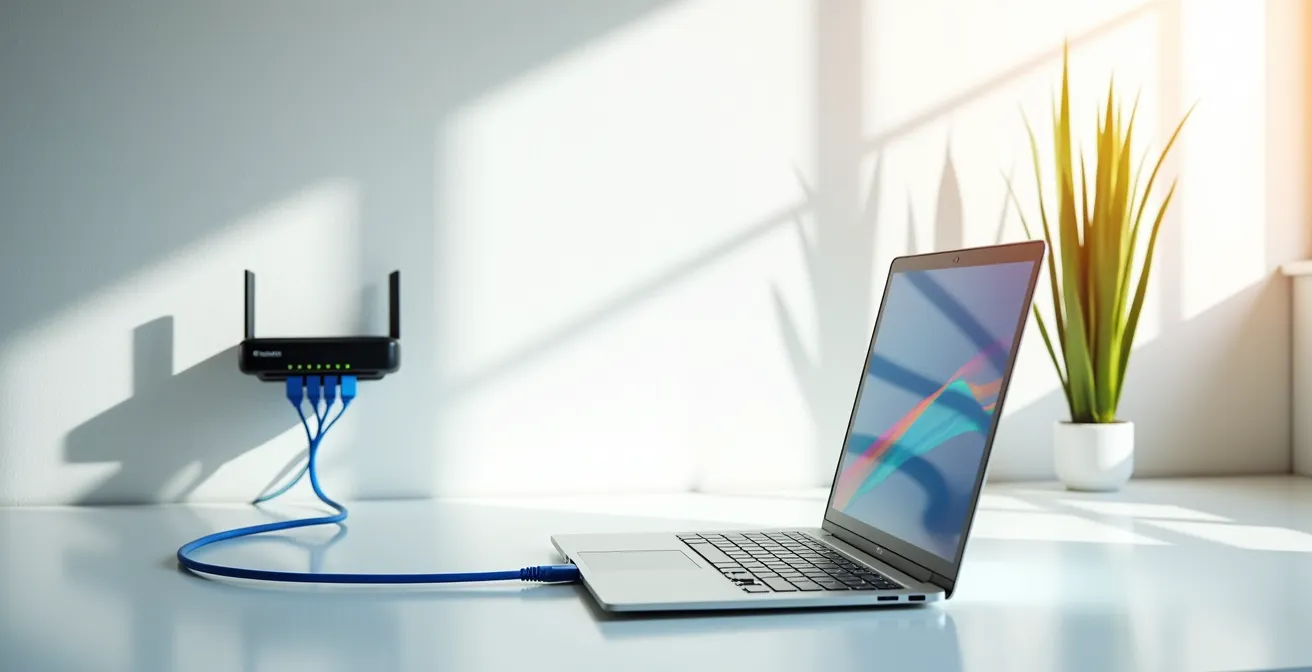
Running tests at different times of the day can also reveal issues with network congestion in your area. A professional-grade fiber connection should deliver consistent speeds, typically 90-95% of what’s advertised, regardless of the time. Documenting your results, especially latency under load (also known as bufferbloat), gives you concrete evidence to present to your ISP if you’re not getting the performance you pay for.
- Connect Directly via Ethernet: Bypass your Wi-Fi completely. Plug your computer directly into one of your router’s LAN ports using an Ethernet cable.
- Close Background Processes: Shut down all other applications, especially those that use the internet like cloud backup services (Google Drive, Dropbox), streaming music, and video.
- Use Multiple Testing Platforms: Don’t rely on a single source. Run tests on at least two of the following: Speedtest.net, Fast.com (Netflix), and Cloudflare’s speed test.
- Select a Different Server: Within a testing platform like Speedtest.net, manually select a test server hosted by a different network provider, not your own ISP, to get a more objective result.
- Test at Various Times: Run the test during off-peak hours (early morning), mid-day, and peak hours (evening) to check for consistency.
- Measure Latency Under Load: Use a test that measures “bufferbloat” during the upload portion. High scores here indicate your connection becomes sluggish during heavy use.
- Compare and Document: Compare your results to your plan’s advertised speeds. On a fiber connection, you should consistently receive 90-95% of the promised upload and download speeds.
Why Your Old Router Is Wasting 50% of Your Bandwidth?
You’ve got a gigabit fiber line coming into your apartment, but your speed tests barely break 100Mbps. Before you blame your ISP, look at your router. An outdated router is one of the most common and overlooked bottlenecks in a home network, effectively throwing away a huge portion of the bandwidth you pay for. There are two primary culprits: obsolete hardware ports and underpowered processors.
First, many older routers are equipped with “Fast Ethernet” ports instead of “Gigabit Ethernet” ports. While the names sound similar, their capabilities are worlds apart. A Fast Ethernet port has a maximum physical speed limit of 100Mbps. This means that even if you have a 500Mbps or 1000Mbps fiber plan, an old router’s WAN port (the one that connects to your ONT) will cap your entire internet connection at 100Mbps. As a guide on fiber vs. cable points out, this physical cap is an absolute limit; no software update or setting can fix it.
Second, even if a router has gigabit ports, its internal processor (CPU) might not be powerful enough to handle the demands of a gigabit connection. Routing a gigabit of data per second, especially with multiple devices and advanced features like QoS or a firewall enabled, is a processing-intensive task. As demonstrated in tests on router performance, routers with older, weaker CPUs often experience packet drops and latency spikes when under load. This can cause your effective speeds to plummet by 50% or more, particularly when several family members are streaming, gaming, and working from home simultaneously. Upgrading to a modern Wi-Fi 6 router with a multi-core processor ensures you have the horsepower to manage your fiber connection without creating an internal bottleneck.
Key Takeaways
- True internet performance for activities like gaming is defined by low latency and stability, not just high download speeds.
- Non-invasive solutions like MoCA 2.5 adapters can provide near-gigabit Ethernet performance using existing coaxial wiring, bypassing landlord restrictions on drilling.
- Your own equipment, such as an old router with slow ports or a modem that overheats, is often the true bottleneck limiting your fiber internet speeds.
The Overheating Mistake That Causes Random Modem Reboots
Your internet connection drops out randomly, especially during intense gaming sessions or while streaming a 4K movie. You restart your modem or ONT, and it works again… for a while. This frustrating cycle is often not a problem with your ISP, but a simple and preventable issue: overheating. The electronic components inside your ONT and router generate a significant amount of heat. If that heat isn’t dissipated effectively, the device’s performance will degrade, leading to slowdowns, packet loss, and eventually, automatic reboots as a self-preservation measure.
The most common mistake is poor placement. Many people hide their networking gear inside crowded, enclosed entertainment centers or stack them with other heat-generating electronics like game consoles and AV receivers. This traps hot air, creating a “hotbox” environment that pushes the internal temperature of the devices beyond their safe operating limits. Proper airflow is not a suggestion; it’s a requirement for stable performance. Your ONT and router need breathing room, ideally with at least six inches of clearance on all sides to allow for passive cooling through their ventilation slots.
Preventing overheating is one of the easiest ways to improve your network’s stability. Simple, no-cost solutions can make a massive difference. Elevating the device slightly off the surface it sits on can dramatically improve airflow underneath it. Keeping dust out of the vents and ensuring the device is not in direct sunlight are also crucial steps. If passive cooling isn’t enough, a small, inexpensive USB-powered fan can provide active cooling and permanently solve the problem of random reboots.
- Elevate for Airflow: Place rubber feet, bottle caps, or a small stand under the device to improve airflow underneath it.
- Isolate from Heat Sources: Position the device away from other electronics that produce heat, such as game consoles, TVs, or cable boxes.
- Avoid Enclosed Spaces: Never operate networking gear inside a closed cabinet. Ensure at least 6 inches of clearance on all sides for ventilation.
- Consider Active Cooling: For high-performance routers that run hot, install a small, silent USB-powered fan pointed at the ventilation holes.
- Keep Out of Sunlight: Do not place your router or ONT where it will be exposed to direct sunlight or near a heating vent.
- Clean Vents Regularly: Use a can of compressed air to clean dust from the ventilation slots every month to maintain optimal airflow.
How to Identify the True Bottleneck Slowing Down Your Gigabit Fiber?
You’ve optimized your setup and followed all the best practices, but your gigabit fiber connection still feels sluggish. The final step is to become a detective and systematically hunt down the true bottleneck. A “bottleneck” is simply the weakest link in the chain that connects you to the internet, and it can be anywhere—from the ISP’s network to the software on your computer. Identifying it requires a methodical process of elimination, testing each component of the chain in isolation.
The goal is to establish a baseline and then add components back one by one until the problem reappears. The most crucial first step is to connect a capable computer directly to your ONT via an Ethernet cable, completely bypassing your own router and Wi-Fi. This test tells you the maximum performance your ISP is delivering to your property line. If the speed is slow here, the problem is likely with your ISP. If the speed is fast, the bottleneck is somewhere within your own home network.
From there, you can investigate other common culprits: a damaged or outdated Ethernet cable (a Cat 5 cable can’t handle gigabit speeds), outdated network card drivers on your computer, or even software like a VPN or misconfigured Quality of Service (QoS) settings on your router that are throttling your speed. By following a structured diagnostic plan, you can stop guessing and pinpoint the exact cause of your slowdown.
Your Action Plan: Finding the Real Speed Bottleneck
- Establish the ISP Baseline: Connect a computer directly to your ONT with a high-quality Ethernet cable, bypassing your router entirely. Run a speed test. This is the “true” speed your ISP is delivering. If it’s slow, the issue is likely on their end.
- Inspect Your Physical Cables: If the baseline is fast, reconnect your router and test again. If it’s now slow, check your cables. Ensure you are using at least a Cat 5e or Cat 6 Ethernet cable, as older Cat 5 cables max out at 100Mbps.
- Update Your Device Drivers: On your computer, ensure your network card drivers are fully updated. Go into the adapter’s advanced settings and confirm that “Speed & Duplex” is set to “1.0 Gbps Full Duplex” or “Auto Negotiation.”
- Disable Software Interference: Temporarily disable any VPN, firewall, or antivirus software on your computer and run the test again. These programs can sometimes interfere with network traffic and create a bottleneck.
- Analyze the Path with Traceroute: Open a command prompt and run a traceroute to a reliable server (e.g., `tracert google.com`). This shows the path your data takes and can help identify which “hop” on the internet is introducing high latency.
By systematically working through these potential issues, you shift from being a frustrated user to an empowered network administrator. You no longer have to guess why your connection is slow; you have the tools and knowledge to diagnose and fix the problem yourself, achieving the fiber performance you pay for, all without ever having to ask for your landlord’s permission to drill a hole.