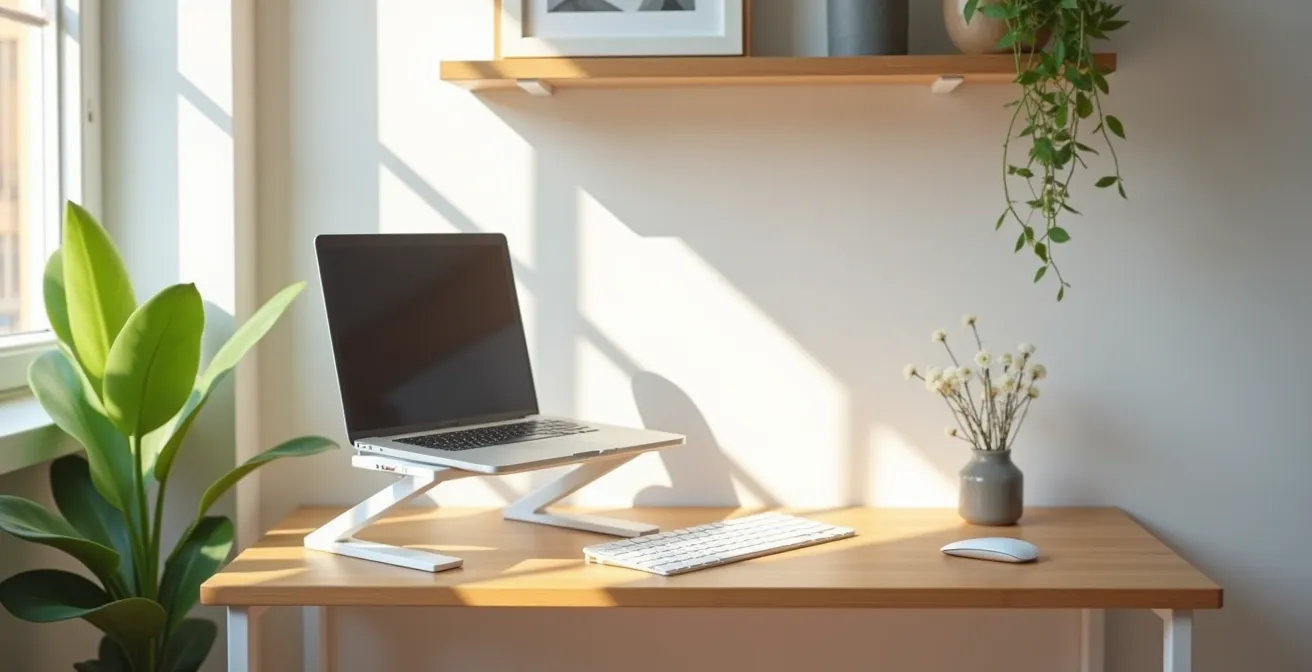
The secret to a functional micro-office isn’t buying smaller gadgets, but mastering the physics of your posture and the psychology of your space.
- Your body is a system of levers; incorrect screen height multiplies strain on your neck and back, leading to inevitable pain.
- Mental energy is finite; constant background noise and a lack of work-life boundaries actively drain your cognitive resources.
Recommendation: Stop thinking about a static desk and start implementing a system of dynamic ergonomics and setup/teardown rituals to protect both your body and your focus.
The promise of remote work is freedom, but the reality for many is a compromise: the dining table, the corner of the bedroom, or even a van dashboard becomes the new cubicle. We’re told to get a laptop stand, maybe an external keyboard, and call it a day. But this superficial advice ignores the fundamental conflict: our bodies weren’t designed to be folded into small, static positions for eight hours, and our brains weren’t meant to blur the lines between work and rest in the same physical location.
While the market is flooded with compact tech, these tools are only a fraction of the solution. The persistent neck pain, the afternoon brain fog, and the inability to “switch off” aren’t just minor inconveniences; they are symptoms of a poorly designed system. They signal a disconnect between our equipment, our bodies, and our environment. As a designer specializing in micro-living, I’ve seen firsthand that true productivity in a compact space comes from a deeper understanding of human-centered design principles.
But what if the key wasn’t in finding the perfect tiny chair, but in understanding the biomechanics that make most chairs a problem? What if the solution to distraction wasn’t just noise-canceling headphones, but managing the cognitive load that noise creates? This guide moves beyond the generic shopping list. We will deconstruct the core challenges of the micro-office—from postural mechanics to psychological boundaries—and provide a strategic framework for building a workspace that is not only compact but genuinely healthy and productive.
This article will guide you through the essential principles for transforming any small corner into an ergonomic powerhouse. By understanding the ‘why’ behind the pain and inefficiency, you can implement targeted, effective solutions that work with your space, not against it.
Summary: A Strategic Guide to Your Micro-Office
- Why Working Directly on a Laptop Screen Causes Neck Pain Within 3 Weeks?
- How to Choose a Portable Monitor That Doesn’t Drain Your Laptop Battery?
- Software or Hardware: Which Is Better for Muting Background Baby Cries?
- The Posture Mistake That Leads to Lower Back Injury for Remote Workers
- How to Structure Your Work Blocks When You Live Where You Work?
- Why Raising Your Screen 6 Inches Can Eliminate Tension Headaches?
- Why the Hum of Air Conditioning Drains Your Mental Energy by 2 PM?
- How to Set Up a Laptop Station in a Dorm Room to Prevent Back Pain?
Why Working Directly on a Laptop Screen Causes Neck Pain Within 3 Weeks?
Working directly on a laptop feels convenient, but it’s a biomechanical trap. The core problem is the fixed relationship between the screen and the keyboard, which forces you into a hunched position. To type comfortably, you place the laptop where your hands naturally fall. But to see the screen, you must tilt your head down, creating what is commonly known as “tech neck.” This posture isn’t just slightly uncomfortable; it’s a violation of your body’s structural mechanics, and its effects are cumulative and rapid. Ergonomic studies confirm this is a widespread issue, revealing that over 45.5% of office workers experience some form of neck pain annually.
The physics at play are staggering. Your head weighs approximately 10-12 pounds in a neutral, upright position. However, for every inch you tilt your head forward, the effective weight on your cervical spine doubles. A 45-degree forward tilt—typical for laptop use—is equivalent to placing a 50-pound weight on your neck. Health system analyses use a powerful analogy: holding a gallon of milk (about 8 pounds) with your arm extended creates immense pressure at the elbow and shoulder. The same principle applies to your neck, and this constant strain can dramatically increase the force on your neck and spine.
Within just a few weeks of sustained work in this position, the consequences manifest. The muscles in your neck and upper back, now under constant tension to support your forward-leaning head, become fatigued and develop trigger points. This leads to stiffness, tension headaches, and sharp pain. The intervertebral discs begin to experience uneven pressure, accelerating wear and tear. You aren’t just getting a sore neck; you are actively training your body into a dysfunctional posture that can lead to chronic pain and long-term injury. The only sustainable solution is to decouple the screen from the keyboard, allowing each to be positioned optimally and independently.
How to Choose a Portable Monitor That Doesn’t Drain Your Laptop Battery?
Adding a portable monitor is the single most effective way to fix the ergonomic disaster of a laptop, but it introduces a new challenge in a mobile setup: power consumption. An inefficient second screen can tether you to a wall outlet, defeating the purpose of a portable office. The key is to select a monitor based on energy-per-watt efficiency, ensuring you get maximum screen real estate for minimal battery drain. The primary factors influencing power draw are resolution, brightness, and connection type.
A 4K portable monitor offers stunning clarity but is a significant power hog, often consuming nearly double the wattage of a standard 1080p (Full HD) model. For most work tasks, 1080p provides ample sharpness and is the smarter choice for preserving battery life. Likewise, running your monitor at 100% brightness can reduce your laptop’s runtime by up to 30%. Opting for a model with easily accessible brightness controls allows you to adapt to your environment and conserve power. The connection is also critical. A monitor that supports DisplayPort Alt Mode over a single USB-C cable is the gold standard for efficiency, as it handles power, data, and video in one line, reducing clutter and energy loss.
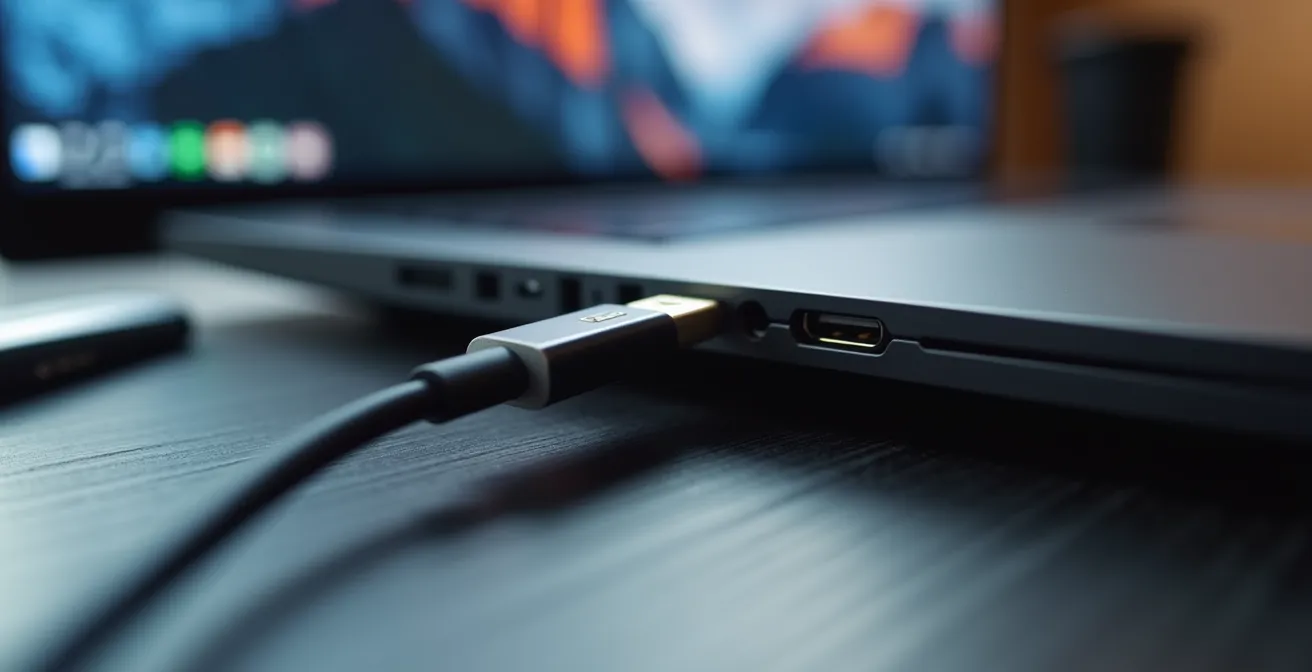
This extreme close-up highlights the simplicity and efficiency of a single-cable solution. To make an informed decision, comparing the specifications is essential, as this comparison of portable monitor power consumption shows.
| Monitor Type | Power Consumption | Battery Life |
|---|---|---|
| 1080p 15.6-inch | 10-15W | 4-6 hours |
| 4K Resolution | 20-25W | 2-3 hours |
| With 100% Brightness | +5W additional | -30% battery life |
Some advanced models even feature built-in batteries, turning them into truly independent peripherals that don’t tax your laptop at all, or offer a power passthrough feature. This allows you to charge your laptop and power the monitor simultaneously through a single port on the monitor, a crucial feature for streamlined, one-plug setups.
Action Plan: Selecting an Energy-Efficient Monitor
- Verify Port Capabilities: Check that your laptop’s USB-C port supports DisplayPort Alt Mode and assess its wattage output.
- Prioritize Connection: Choose monitors that use a single USB-C cable for both power and video to maximize efficiency.
- Check for Passthrough: Look for a power passthrough feature (minimum 60W) to charge your laptop and monitor with one power brick.
- Balance Resolution and Battery: Select a 1080p model over 4K if maximizing battery life is your top priority.
- Consider Integrated Batteries: For ultimate portability, evaluate monitors with their own built-in batteries to avoid any drain on your laptop.
Software or Hardware: Which Is Better for Muting Background Baby Cries?
In a micro-office, especially one carved out of a living space, unwanted background noise is a constant battle. The sudden, high-pitched sound of a baby crying or a dog barking is particularly challenging for standard noise cancellation. The choice between hardware (like ANC headphones) and software (like AI-powered noise filtering) depends entirely on whose perception you are trying to manage: your own, or that of the person on the other end of your call.
Hardware solutions, such as Active Noise-Canceling (ANC) headphones, are primarily designed to protect your own focus. They work by creating inverse sound waves to cancel out ambient noise, and they excel at mitigating low-frequency, constant hums like air conditioning or engine rumble. However, they are less effective against sudden, unpredictable sounds like a baby’s cry. While they will muffle the noise, they won’t eliminate it entirely from what you hear.
Software solutions, on the other hand, are designed to clean up your microphone’s output, protecting your colleagues or clients from hearing your background noise. AI-powered apps like Krisp or NVIDIA Broadcast are trained to distinguish human voice from other sounds. They digitally remove non-vocal noises—from keyboard clicks to crying—before the audio is sent over the call. Their effectiveness can be astonishing, creating a pristine, professional audio feed for your listeners even in a chaotic environment. A breakdown of hardware versus software solutions illustrates the trade-offs clearly.
| Solution Type | Best For | Effectiveness | Cost Range |
|---|---|---|---|
| ANC Headphones | Your own focus | Low-frequency hums | $200-$400 |
| AI Software (Krisp) | Others’ perception | Non-voice sounds | $5-12/month |
| NVIDIA Broadcast | GPU-based filtering | High accuracy | Free (with NVIDIA GPU) |
Ultimately, the ideal approach for a truly professional micro-office is a hybrid one. Use ANC headphones to preserve your own concentration from the general din, and run AI noise-cancellation software to ensure that sudden interruptions on your end don’t disrupt your meeting. This two-pronged strategy addresses both sides of the communication equation.
The brain is not passively ignoring the AC hum; the auditory cortex is actively working to suppress it
– Ergonomics Research Study, Cognitive Load from Auditory Filtering
The Posture Mistake That Leads to Lower Back Injury for Remote Workers
The most pervasive and damaging posture mistake for remote workers isn’t necessarily slouching; it’s remaining static. The human body is designed for movement. When you sit in a single, fixed position for hours—even a “perfectly ergonomic” one—you place a continuous, unchanging load on the same muscle groups, ligaments, and spinal discs. This static loading is the silent culprit behind much of the lower back pain and injury that plagues the desk-bound workforce. In a micro-office, where the seating options are often compromised (a dining chair, a stool, a van bench), the risk is even higher.
When you stay still, blood flow to the muscles in your lower back decreases, depriving them of oxygen and leading to fatigue and stiffness. The intervertebral discs in your lumbar spine, which act as shock absorbers, rely on movement to absorb nutrients and expel waste. A static posture compresses these discs unevenly and continuously, hindering this natural process and accelerating degeneration. Your core stabilizing muscles, which are meant to support your spine, become inactive and weaken over time, transferring even more stress onto your spinal ligaments and joints.
The solution is not to find one perfect chair but to adopt a philosophy of dynamic ergonomics. This means intentionally changing your working position frequently throughout the day to vary the loads on your body. A tiny space can paradoxically be an advantage here, as it encourages creative, multi-positional work. Instead of being locked into a single desk, you can create a system of different work “stations” within your two square meters.
Implementing a dynamic model involves consciously rotating between several postures. This approach keeps your muscles engaged, promotes circulation, and gives different parts of your body a chance to rest and recover. Here are the key elements of a dynamic seating model for small spaces:
- Your main ergonomic setup with a proper chair or cushion ensuring your forearms are horizontal.
- A floor-based cushion for short, 20-minute sessions that open the hips and change spinal alignment.
- Using a kitchen counter or a high shelf as a temporary standing desk for posture variation.
- Setting a timer to prompt a position change every 30-45 minutes.
- Incorporating micro-movements like shoulder rolls and neck stretches every 20 minutes.
How to Structure Your Work Blocks When You Live Where You Work?
In a space smaller than a walk-in closet, the physical boundary between “work” and “life” disappears. This is more than a logistical problem; it’s a psychological one. When your laptop is always in your line of sight, your brain never fully receives the signal to disengage from work mode. This leads to a state of chronic, low-level stress, difficulty relaxing, and diminished productivity during work hours. The solution is to create ritualized boundaries—a series of small, consistent actions that signal the beginning and end of your workday.
These rituals act as powerful psychological cues. The act of “setting up” your office in the morning—unpacking your laptop, stand, and keyboard—tells your brain it’s time to focus. More importantly, the act of “tearing down” at the end of the day—packing everything away and reclaiming the space for living—provides a definitive conclusion. This physical transition creates the mental separation that your environment cannot. It replaces the commute to an office with a deliberate, mindful routine.

This focused transformation of a personal corner into a work cockpit is the essence of the ritual. It’s about curating a dedicated, portable kit that can be deployed and stored away, making any surface a temporary but intentional office. One excellent example is the concept of a ‘Mobile Office in a Bag’, which embodies this principle of contained, portable professionalism.
Case Study: The ‘Mobile Office in a Bag’ Ritual
To maintain work-life separation in a small home, one remote worker created a “Mobile Office in a Bag.” By curating all necessary work items—laptop, charger, notebook, pens—into a single, dedicated bag, a powerful ritual was established. The workday begins by unpacking the bag and setting up the “office” on a surface. The workday ends by carefully returning every item to the bag and stowing it away. This simple physical act of packing and unpacking creates the psychological boundary that a dedicated office room would normally provide, allowing the space to revert to its primary function as a home.
Structuring your work blocks, therefore, becomes linked to these rituals. Use a time-blocking method like the Pomodoro Technique (e.g., 50 minutes of focused work followed by a 10-minute break), but tie the end of your last block to the teardown ritual. When the final timer goes off, the workday is over. You don’t just close your laptop; you dismantle your office. This discipline is the most effective way to protect your personal time and mental energy when you live where you work.
Why Raising Your Screen 6 Inches Can Eliminate Tension Headaches?
Tension headaches that seem to start at the base of your skull and wrap around your head by mid-afternoon are often not a primary headache at all. They are cervicogenic headaches, meaning they originate from a problem in the neck. The primary culprit is almost always the suboccipital muscles, a small group of muscles responsible for fine-tuning the position of your head. When your laptop screen is too low, you tilt your head forward and down, forcing these muscles into a state of constant, low-level contraction to keep your head from dropping further.
Imagine holding a light weight with your bicep tensed for hours on end; eventually, the muscle would scream in protest. This is precisely what happens to your suboccipital muscles. This sustained tension irritates the nerves running through the area, including the greater occipital nerve, which travels up the back of your head and over the scalp. When this nerve is irritated, it refers pain that you perceive as a tension headache. You can take painkillers, but you are only treating the symptom. The cause is the sustained, unnatural posture.
Raising your screen by just a few inches—typically around 6 inches for most users—can be a revolutionary fix. The goal is to position the top of your monitor at or slightly below eye level. This simple adjustment allows you to keep your head in a neutral position, balanced effortlessly atop your spine. The suboccipital muscles can relax, releasing their grip on the surrounding nerves. For many, the chronic afternoon headaches simply vanish within days of making this change. This single ergonomic fix offers one of the highest returns on investment for your well-being.
Fortunately, achieving this elevation doesn’t require expensive equipment, which is ideal for a compact or budget-conscious setup. Here are several minimalist ways to raise your screen:
- Zero-Cost Solution: A stable stack of 4-6 large hardcover books is the classic, effective solution.
- Minimalist Gear: An ultra-portable, foldable laptop stand like a Roost or Nexstand can be adjusted to the perfect height and fits easily in a bag.
- DIY Approach: A sturdy, appropriately-sized cardboard box can be used as a temporary or even long-term stand.
- Office Supply Hack: A ream of printer paper provides a stable, 2-inch lift. Use multiple if needed.
Why the Hum of Air Conditioning Drains Your Mental Energy by 2 PM?
The constant, low-frequency hum of an air conditioner, refrigerator, or fan may seem like harmless background noise that you can easily “tune out.” However, your brain doesn’t just passively ignore it. Your auditory cortex is engaged in an active, continuous process of auditory filtering to suppress that sound so you can concentrate. This filtering isn’t free; it consumes a significant amount of subconscious mental energy. This constant cognitive load is a silent drain on your resources, and by 2 PM, you may find yourself feeling mentally exhausted without knowing why.
This phenomenon explains why you might feel surprisingly drained after working in a coffee shop, even with headphones on. Your brain is working overtime to process and filter out a complex soundscape of chatter, clatter, and machinery. The solution isn’t silence—which can be unsettling in its own right—but to replace the chaotic or monotonous noise with a sound that is easier for your brain to process, or to mask it effectively. This is where the concept of “soundscaping” your micro-office becomes crucial for preserving mental energy.
Instead of letting your brain fight the AC hum, you can provide it with a consistent, soothing auditory backdrop. Research from acoustic institutes suggests that brown or pink noise is more effective than white noise for focus. These sounds have more power in the lower frequencies, which makes them excellent at masking the exact kind of low rumbles produced by appliances and traffic. By playing brown noise through quality headphones, you give your auditory cortex a simple, predictable sound to lock onto, freeing up cognitive resources that were previously spent on filtering.
For a comprehensive solution, you can combine this with physical sound absorption. Even in a tiny space, placing a fabric-covered corkboard or a thick blanket between you and the noise source can help dampen the sound waves. One study on workspace acoustics found that implementing a two-pronged approach—using brown noise apps through headphones while adding simple sound-absorbing materials—can reduce the cognitive load from environmental noise by a remarkable margin, leaving you with more mental energy for deep work.
Key Takeaways
- Non-Negotiable Ergonomics: The top of your screen must be at eye level. This single change, achieved with a stand or a stack of books, is the foundation of a pain-free setup.
- Dynamic Posture is Paramount: The goal isn’t a perfect static chair, but frequent changes in position. Rotate between sitting, standing, and even floor-based work to keep your body active.
- Ritual Creates Separation: In a small space, psychological boundaries are more important than physical ones. A consistent setup and teardown routine for your work gear is crucial for work-life balance.
How to Set Up a Laptop Station in a Dorm Room to Prevent Back Pain?
A dorm room, van, or studio apartment presents the ultimate ergonomic challenge: you are often forced to work on furniture not designed for it, like a standard-issue desk chair, a bed, or a low-slung sofa. Attempting to work for hours in these positions is a direct path to back pain. The key is not to replace all the furniture, but to augment it with a few small, targeted tools that correct your posture and create a dedicated, ergonomic “cockpit” you can assemble and disassemble as needed.
The most common problem with standard chairs is that they promote a backward pelvic tilt, causing your lumbar spine to round and putting immense pressure on your lower back. A simple seat wedge cushion can correct this by tilting your pelvis forward, encouraging your spine to maintain its natural ‘S’ curve. Paired with a dedicated lumbar support pillow, this can transform a basic chair into a reasonably ergonomic seat for focused work blocks. Similarly, if your feet don’t rest flat on the floor, using a footrest—or a stack of textbooks—is essential to maintain the crucial 90-degree angle at your knees, which reduces strain on your lower back.
Creating psychological separation is also vital. One successful strategy involves using lighting to define the workspace. As Brenda To, a remote worker in Vancouver, explained about her bedroom office, using a small table lamp with a warm bulb for work helps separate the “work zone” from the “sleep zone” without harsh overhead light. This creates a distinct mood and helps signal to your brain when it’s time to focus.
Case Study: The Dorm Room Office Conversion
Brenda To successfully set up a cozy and effective home office corner directly in her bedroom. Acknowledging that the co-location is not ideal, she focused on creating a strong sense of separation. The key strategy was twofold: first, a clear physical boundary for her work items, and second, using a small, dedicated desk lamp with a warm bulb. This task lighting creates a “pool” of focused light for work, psychologically separating the desk from the rest of the room, which remains a calm, dimly lit space for rest.
To upgrade any basic surface into a functional station, consider this minimalist kit:
- A seat wedge cushion to correct pelvic tilt on any chair.
- A dedicated lumbar support pillow to maintain your natural lower back curve.
- A footrest (or a stack of books) to ensure your knees are at a 90-degree angle.
- An adjustable desk lamp to create a focused work zone and reduce eye strain.
- A portable laptop stand and external keyboard/mouse to achieve proper screen height.
Start by implementing just one of these principles today—whether it’s raising your screen with a stack of books or creating a 5-minute teardown ritual. By taking a systematic approach to designing your micro-office, you can reclaim your comfort, protect your focus, and build a truly sustainable remote work practice, no matter how small your space.