
In summary:
- Simply increasing font size is not enough; a holistic setup considers battery life, cognitive load, and multi-sensory feedback.
- Screen readers like VoiceOver or TalkBack are powerful but have significant battery costs that must be managed with specific settings.
- Never disable system vibrations (haptics), as they provide crucial non-visual, non-auditory cues for users with combined vision and hearing loss.
- A resilient setup includes pre-configured “one-touch” emergency calls and a dedicated, locked-down telemedicine station.
Watching a parent or elderly loved one struggle to read a text message, squinting at a screen that feels too small and too bright, is a common and frustrating experience. The default advice is always the same: make the font bigger. While increasing text size is a necessary first step, it’s often a superficial fix that fails to address the deeper challenges of using a modern smartphone with vision loss. True accessibility isn’t just about visibility; it’s a complex ecosystem of features that must work in harmony.
Many guides list features but overlook the critical trade-offs. Enabling a screen reader can drain the battery, and a setting intended to help might create a new obstacle for someone with arthritis. This guide adopts a different perspective, one born from years of training seniors to use technology confidently. Our angle is not just to turn features on, but to build a resilient and empowering system. This involves understanding the consequences of each setting, managing cognitive load, and ensuring crucial information is delivered through multiple senses.
We will move beyond the basics to explore the hidden settings and configurations that make a real difference. We’ll cover why powerful tools like screen readers impact battery life and how to mitigate it, how to choose between voice control and a stylus for arthritic hands, and how to set up fail-safes like one-touch emergency calls. By the end, you’ll have a complete strategy to transform a standard smartphone into a reliable lifeline that enhances safety, connection, and independence.
This article provides a detailed roadmap, exploring the specific settings and configurations that create a truly accessible experience. The following sections will guide you through each critical aspect of the setup process.
Summary: How to Configure a Smartphone for a Senior with Vision Loss
- Why Using VoiceOver or TalkBack Reduces Battery Life by 20%?
- Voice Control or Stylus: Which Is Easier for Users with Severe Arthritis?
- How to Check If an App Is Compatible with Screen Readers Before Buying?
- The Setting Mistake That Removes Crucial Cues for Hearing-Impaired Users
- How to Set Up “One-Touch” Emergency Calls for Users with Limited Dexterity?
- How to Connect Hearing Aids to Tablets for Clearer Doctor Consultations?
- Why Your Speaker Wakes Up During TV Shows and How to Fix It?
- How to Set Up a Telemedicine Station for Seniors with Limited Tech Skills?
Why Using VoiceOver or TalkBack Reduces Battery Life by 20%?
Activating a screen reader like Apple’s VoiceOver or Android’s TalkBack is a game-changer for users with significant vision loss, but it comes with a hidden cost: battery drain. The reason is that these services are not passive; they are constantly working in the background. The software must intercept every touch, interpret every element on the screen, and process it through a text-to-speech engine. This continuous analysis requires significant processing power, which in turn consumes battery. Discussions among experienced users confirm that screen readers can increase battery consumption by 20-25%.
Furthermore, even when the “Screen Curtain” feature is active (which turns the display black for privacy and to save power), the phone’s processor and graphics chip are still working to render the user interface for the screen reader to interpret. This is a critical accessibility trade-off: gaining unparalleled navigation control comes at the expense of device longevity. For a senior who may forget to charge their phone daily, this can be a serious issue.
However, you can proactively manage this drain by creating a custom power-saving profile. This involves disabling non-essential background processes and optimizing display settings to work in concert with the screen reader. The goal is to claw back the power that VoiceOver or TalkBack consumes.
Here are several effective strategies to conserve battery for a screen reader user:
- Set screen brightness to 0% when using the screen curtain feature, especially on devices with OLED displays where black pixels are truly off.
- Disable Background App Refresh for any application that isn’t critical, like social media or games.
- Turn off Location Services for all apps except those needed for navigation (like Maps) or emergencies.
- Use Dark Mode system-wide, as it significantly reduces display power consumption on OLED screens.
- Enable Low Power Mode more aggressively, setting it to activate when the battery reaches 50% instead of the default 20%.
Voice Control or Stylus: Which Is Easier for Users with Severe Arthritis?
For seniors with severe arthritis, the simple act of tapping a screen can be painful and difficult due to joint pain, tremors, or low grip strength. The two most common assistive solutions are voice control and a stylus, but they address very different aspects of the problem. Choosing the right one requires looking beyond the technology and understanding the user’s specific symptoms and cognitive load tolerance.
Voice Control (like Apple’s Voice Control or Android’s Voice Access) is a powerful tool that allows for completely hands-free operation. However, it requires the user to memorize a specific vocabulary of commands, which can be mentally taxing. A stylus, on the other hand, is intuitive but can exacerbate physical symptoms. An adaptive stylus with a large, ergonomic grip can help with low grip strength, but it won’t solve issues with tremors or pain on impact from tapping.

The decision involves a careful trade-off between physical comfort and mental effort. The following comparison, based on insights from discussions within accessibility communities, breaks down which tool is better suited for specific arthritic symptoms.
| Symptom | Voice Control | Stylus | Recommendation |
|---|---|---|---|
| Tremors | Excellent – No physical contact needed | Poor – Tremors affect precision | Voice Control |
| Low grip strength | Excellent – Zero grip required | Good with adaptive grips | Voice Control or T-handle stylus |
| Joint pain on impact | Excellent – Non-contact | Poor – Repeated tapping causes pain | Voice Control |
| Cognitive load | High – Must memorize commands | Low – Intuitive point-and-tap | Stylus for simplicity |
How to Check If an App Is Compatible with Screen Readers Before Buying?
One of the most frustrating experiences for a screen reader user is purchasing an app only to find it’s completely inaccessible, filled with unlabeled buttons and unreadable text. Unlike physical products, you can’t “try before you buy” with many paid apps. Fortunately, there are several due diligence steps you can take to verify an app’s accessibility level before spending any money. This investigative work is crucial to avoid wasting money and causing frustration.
The first and easiest step is to mine the app store reviews. Don’t just look for star ratings; use the search function within the reviews page. Searching for terms like “VoiceOver,” “TalkBack,” “blind,” or, more tellingly, “unlabeled buttons” will quickly surface feedback from the accessibility community. An absence of any mentions can be as telling as negative reviews, suggesting the developer has not considered this user base at all.
Beyond the app store, dedicated communities are the best resource. Websites like the AppleVis forum for iOS apps and the Eyes-Free Google Group for Android apps provide detailed reviews and ratings specifically from a non-visual user’s perspective. These communities often test apps thoroughly and can tell you precisely which features work and which don’t. A serious developer will also often have an “Accessibility Statement” on their website, signaling their commitment. If all else fails, directly contacting the developer to ask about their support for screen readers is a final, definitive step.
Here is a checklist to follow before purchasing any new app:
- Search app store reviews for accessibility-specific terms: ‘VoiceOver’, ‘TalkBack’, ‘unlabeled buttons’.
- Check the developer’s website for a dedicated ‘Accessibility Statement’.
- Visit the AppleVis forum for crowdsourced accessibility ratings of iOS apps.
- Join the Eyes-Free Google Group to find reviews for Android apps.
- Test a free or ‘lite’ version of the app first if one is available.
- Contact the developer directly and ask about their compatibility with screen readers before you buy.
Absence of any accessibility mentions in app reviews can be as much of a red flag as negative ones.
– SeniorLiving.org Accessibility Guide, Smartphone Apps and Resources for People with Vision Loss
The Setting Mistake That Removes Crucial Cues for Hearing-Impaired Users
In the process of simplifying a phone’s interface, it can be tempting to turn off features that seem distracting, such as vibrations and system sounds. However, this is a critical mistake that can inadvertently isolate users with multiple sensory impairments. A feature that seems redundant to you may be a primary channel of information for someone else. This is the principle of sensory redundancy: a well-designed system communicates important alerts through sound, sight (screen flashes), and touch (vibration) simultaneously.
For a senior with both vision and hearing loss, haptic feedback (vibration) is not just a minor notification feature; it is their only reliable, non-visual, non-auditory channel for information. It confirms a button has been pressed, an action has been completed, or a call is coming in. Disabling “System Haptics” or “Vibration on Touch” effectively cuts them off from the primary way they interact with their device. It’s a setting that should be considered non-negotiable and always left on.
Case Study: Cross-Disability Support in Practice
Android’s accessibility suite is a prime example of this principle. It is designed to combine haptic feedback (distinct vibration patterns) with visual alerts (like an LED flash) and traditional audio cues. As detailed in their approach to accessibility, this layered system provides multiple pathways for information. For users with co-occurring hearing and vision impairments, the haptic feedback often becomes the main channel for notifications. Accidentally disabling this feature is not a minor inconvenience; it can render the device almost unusable by removing the user’s primary method of confirmation and interaction.
To create a truly resilient setup, you must protect these layers of feedback. The following settings should be considered essential and should never be disabled, as they form a web of redundant cues that ensures information gets through, regardless of the user’s sensory abilities.
- Vibration on Touch: Essential tactile confirmation that a button press was registered.
- LED Flash for Alerts: A critical visual notification for users who cannot hear ringtones or notification sounds.
- System Haptics: Provides crucial feedback and confirmation for users with multiple impairments.
- Notification Sounds: Even at a low volume, these provide an additional layer of sensory input.
- Screen Flash for Notifications: Another visual cue that can be paired with vibration and sound.
How to Set Up “One-Touch” Emergency Calls for Users with Limited Dexterity?
In an emergency, fumbling with a lock screen, finding the phone app, and dialing a number is not an option for a senior with limited vision or dexterity. A core part of creating a resilient setup is programming a true “one-touch” or zero-effort method to call for help. Modern smartphones have powerful but often hidden features that allow you to create these shortcuts, bypassing the standard interface entirely. These methods should be configured and practiced ahead of time.
Options range from physical button presses to home screen widgets. For example, the “Back Tap” feature on iOS allows you to trigger an action, like calling a specific contact, simply by tapping the back of the phone two or three times. Android offers similar functionality by remapping the side key. For a more visual approach, a “Direct Dial” widget can be placed on the home screen—a large, single button with a contact’s picture that dials their number instantly when tapped. These shortcuts remove the cognitive load and physical steps required in a high-stress situation.
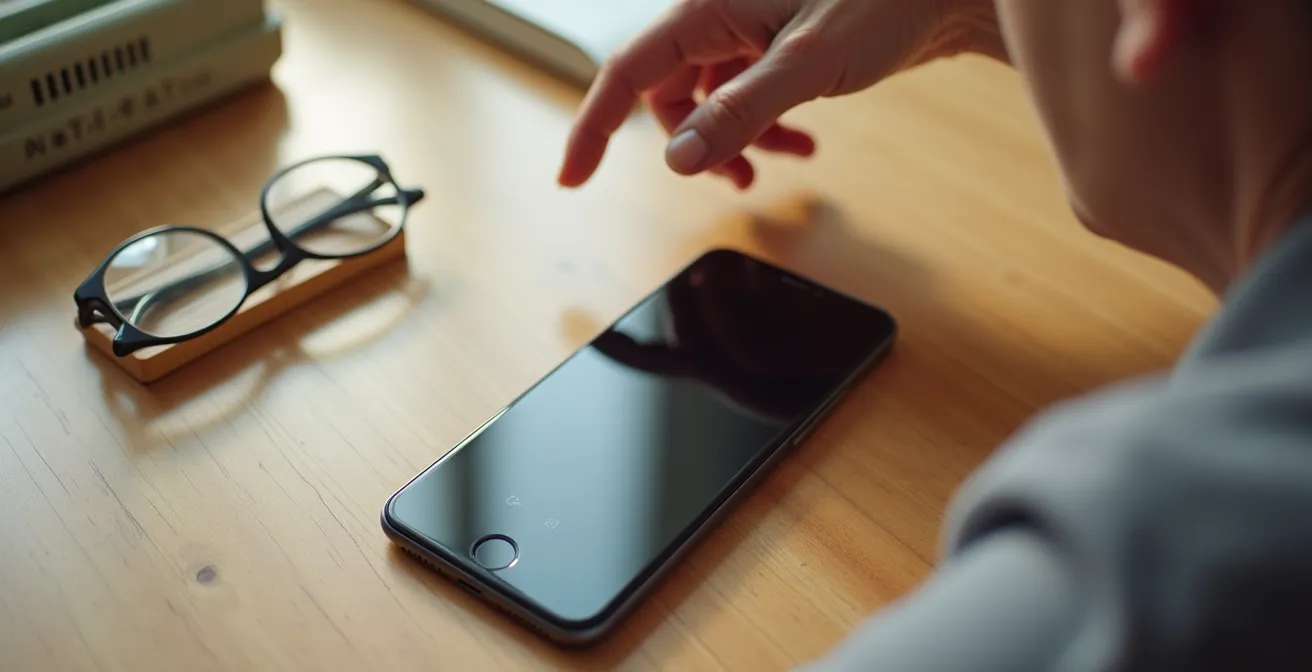
It’s vital to configure multiple methods to provide redundancy. The official Emergency SOS feature (often activated by pressing a side button five times) should always be set up, as it can also automatically share the user’s location with emergency contacts. Finally, voice activation provides a completely hands-free option. Training the user to say “Hey Siri, call 911” or “OK Google, emergency” is another layer of protection.
Follow this guide to set up a multi-layered, one-touch emergency system:
- iOS Back Tap: Go to Settings > Accessibility > Touch > Back Tap. Set a Double or Triple Tap to a Shortcut that calls an emergency contact.
- Android Side Key: In Settings > Advanced Features > Side Key, configure the “Press and Hold” action to a Speed Dial number.
- Create a Direct Dial Widget: Long-press the home screen, select Widgets, and choose “Direct Dial.” Assign it to an emergency contact for a one-tap call button.
- Configure Emergency SOS: In your phone’s safety settings, enable the 5-press activation and add emergency contacts who will receive a location alert.
- Train Voice Activation: Practice using commands like “Hey Siri, call [Emergency Contact Name]” or “OK Google, call emergency services.”
How to Connect Hearing Aids to Tablets for Clearer Doctor Consultations?
Telemedicine appointments on a tablet can be a lifeline for seniors, but they are only effective if the audio is crystal clear. For someone with hearing loss, the tablet’s small speakers are often inadequate. The solution is to stream the audio directly to their hearing aids, turning them into a pair of high-fidelity wireless headphones. Thankfully, modern technology has made this process much simpler than it used to be. According to assistive technology resources, over 90% of modern hearing aids now support direct audio streaming protocols.
The two key technologies to look for are “Made for iPhone” (MFi) and “Audio Streaming for Hearing Aids” (ASHA) for Android. If the user’s hearing aids are labeled with one of these, they can be paired directly with a compatible tablet via Bluetooth. Once paired, you can configure the tablet’s accessibility settings to automatically route all audio—from video calls, movies, or music—to the hearing aids. This provides a direct, clear audio feed that cuts out background noise, making it much easier to understand a doctor during a consultation.
A crucial step after pairing is to test the setup with a practice call. This ensures everything is working correctly before the actual appointment, reducing stress and potential technical hiccups. Setting the audio routing to “Always Hearing Devices” ensures that the connection is automatic and doesn’t require the user to manually select the audio source each time a call comes in.
Action Plan: Pairing Hearing Aids for Telemedicine
- Check Compatibility: First, confirm the hearing aids are compatible. Look for a “Made for iPhone” (MFi) or “Audio Streaming for Hearing Aids” (ASHA) label on the packaging or in the manual.
- Initiate Pairing: Open the tablet’s Bluetooth settings. Turn the hearing aids off and on again to put them into pairing mode as per their instructions.
- Select the Device: Once the hearing aids appear in the tablet’s list of available Bluetooth devices, tap to select and pair them.
- Set Audio Routing: Go to the tablet’s Accessibility settings, find the “Hearing Devices” or “Hearing” menu, and look for an “Audio Routing” option.
- Prioritize Hearing Aids: Set “Call Audio” and “Media Audio” to “Always Hearing Devices.” This ensures calls and other media will automatically play through them.
Why Your Speaker Wakes Up During TV Shows and How to Fix It?
A common annoyance for seniors who use smart speakers is having the device “wake up” and respond to dialogue from a TV show. This happens because the “wake word” (like “Alexa” or “OK Google”) is triggered by words or phrases in the show that sound similar. It’s not just a minor irritation; it can be confusing and disruptive, especially for someone who may already find the technology intimidating. The issue is often exacerbated by TV audio settings that emphasize dialogue frequencies to make it clearer, inadvertently making it sound more like a command to the smart speaker.
The problem is known as a “false positive” activation. The speaker’s microphones are always listening for a specific phonetic pattern, and a phrase from a TV show can occasionally match it closely enough to trigger a response. There are several tiers of solutions to fix this, ranging from simple software tweaks to changing the physical environment.
Case Study: Wake Word False Positive Analysis
An analysis of smart speaker activations highlights how common this issue is. In one documented case, a user found their device was frequently triggered by TV dialogue containing phrases like “Okay, seriously” or “I’ll text her.” These phrases, when processed by a TV’s soundbar that boosts dialogue, mimicked the wake word. According to an analysis shared by digital accessibility experts, the user found that simply changing the wake word from “Alexa” to the less common “Computer” reduced these false activations by over 70% while watching television.
Fixing this issue involves a multi-tiered approach. The easiest fix is often the most effective: changing the wake word to a less common option. If that doesn’t work, you can adjust the device’s sensitivity or even physically reposition it to minimize interference. The goal is to create a setup where the speaker only responds when it’s meant to.
- Easy Fix: Change the wake word. On Amazon devices, switch from “Alexa” to “Echo” or “Computer.” On Google devices, use “Hey Google” instead of “OK Google.”
- Intermediate Fix: Adjust the “Wake Word Sensitivity” in the device’s app settings. Lowering it to “Less Sensitive” can help filter out ambient noise.
- Advanced Fix: Reposition the speaker. Moving it so it isn’t in the direct sound path of the TV speakers can significantly reduce false triggers. A 90-degree angle is often effective.
- Smart Solution: Create a “Movie Time” or “TV Time” routine in the speaker’s app. This routine can be programmed to automatically mute the speaker’s microphone when activated.
Key Takeaways
- A successful setup is a holistic one, balancing features against their impact on battery life and cognitive load.
- Protect sensory redundancy by never disabling features like system haptics, which are vital for users with multiple impairments.
- Proactively build a resilient safety net with one-touch emergency call shortcuts and a dedicated, simplified station for telemedicine.
How to Set Up a Telemedicine Station for Seniors with Limited Tech Skills?
The ultimate goal of many of these accessibility settings is to enable reliable and independent communication, especially for critical needs like healthcare. A well-configured telemedicine “station” can empower a senior to attend doctor’s appointments from home, but it must be designed for zero friction. For someone with limited tech skills and physical challenges, any complexity can become an insurmountable barrier. The guiding philosophy should be the KISS principle: Keep It Simple, Senior.
This means creating a dedicated, pre-configured, and physically stable setup. Instead of using a personal phone that might have low battery or be filled with distracting notifications, use a dedicated tablet. Mount this tablet on an adjustable gooseneck stand clamped to a bedside table. This eliminates the need to hold the device and allows for easy positioning. The software should be locked down using features like Guided Access (iOS) or App Pinning (Android). This locks the tablet into a single application—the video conferencing app—preventing the user from accidentally closing it or getting lost in other menus.
Preparation is everything. Before any appointment, ensure the device is fully charged, the Wi-Fi is strong (a minimum of 10 Mbps is recommended), and the app is already launched. The final touch is a low-tech visual aid: a large-print instruction card with a single, simple step like “TAP THE BIG GREEN BUTTON TO ANSWER.” A practice run with a family member the day before the real appointment can help build confidence and work out any last-minute kinks. Having a backup plan, like a caregiver’s phone number clearly visible for tech support, provides an essential safety net.
Apply these settings today to transform a standard smartphone into a reliable lifeline, providing both you and your loved one with greater peace of mind.