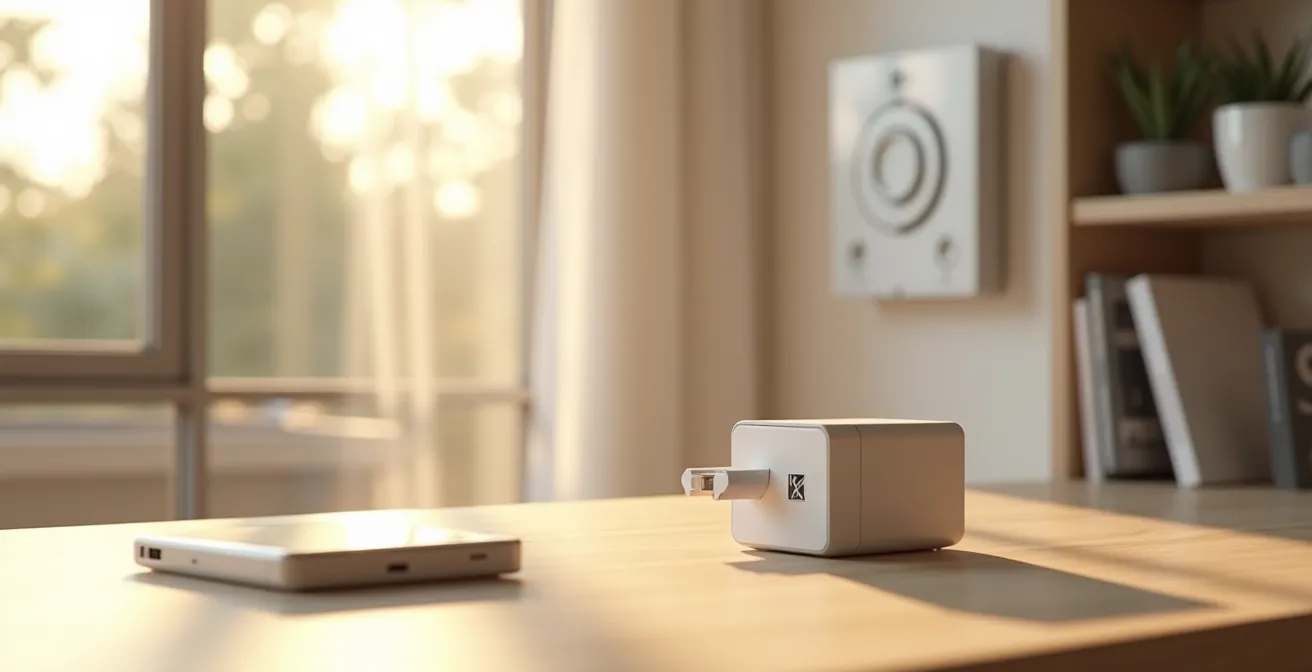
Contrary to popular belief, obsessively unplugging modern phone chargers is a waste of effort with negligible financial return. Due to strict efficiency standards, these devices consume virtually zero power when idle. As an electrical efficiency engineer, this analysis reveals that significant savings on your electricity bill come not from fighting microscopic phantom loads, but from identifying and managing a few high-consumption “energy vampires” and optimizing your devices for longevity, not just minimal power draw.
The advice is as common as it is persistent: unplug your chargers when they aren’t in use to stop “vampire power” from draining your wallet. It’s a simple, tangible action that feels responsible. We visualize tiny streams of electricity flowing needlessly, adding up on our monthly bill. This has led to a culture of diligent unplugging, where every unused adapter is seen as a small financial leak. But what if the effort spent on this daily ritual is completely disproportionate to the reward? What if this common wisdom is based on outdated technology and a fundamental misunderstanding of modern electrical engineering?
From an efficiency engineer’s perspective, energy conservation is a game of magnitude. The real question isn’t whether an idle charger uses power, but *how much* it uses and whether that amount is worth your attention. While older, inefficient linear power supplies from the 90s were indeed wasteful, today’s chargers are an entirely different breed. Regulations and technological advancements in switching power supplies have all but eliminated significant phantom load in these small devices. The true energy culprits in a modern home are often hiding in plain sight, operating in high-power standby modes that cost you real money.
This article moves beyond the myth of the evil phone charger. We will dissect the technology that makes modern adapters incredibly efficient, identify the real, high-impact energy vampires that could be costing you over $50 a year, and provide a practical framework to audit your own home. More importantly, we’ll shift the focus from saving fractions of a penny on electricity to extending the lifespan of your expensive gadgets by hundreds of dollars—a far greater return on your investment. It’s time to stop chasing ghosts and start hunting the real monsters on your power bill.
This guide provides a structured, data-driven look at where your home’s standby energy is truly going. We’ll explore each aspect, from the science of power supplies to the practical steps you can take today to make a meaningful impact on your expenses.
Summary: An Engineer’s Guide to Real Energy Savings
- Why Modern Switching Power Supplies Draw Almost Zero Power When Idle?
- Console Instant-On Mode: The Hidden Feature Costing You $20/Year?
- Auto-Brightness or Manual: Which Actually Saves More Battery and Energy?
- How to Use a Master/Slave Power Strip to Kill Power to Peripherals Automatically?
- Dark Mode: Does It Save Battery on LCD Screens or Only OLED?
- How to Identify Which Appliance Is Costing You $50/Month in Standby Power?
- The Mistake That Ruins Your Tablet Battery Life When Using Laptop Chargers
- How to Extend the Lifespan of Your Gadgets by 2 Years Without Professional Tools?
Why Modern Switching Power Supplies Draw Almost Zero Power When Idle?
The core reason the “unplug your charger” myth is outdated lies in a fundamental technology shift from linear power supplies to Switching Power Supplies (SPS). Old chargers used a heavy, inefficient transformer that was “always on,” constantly drawing power and generating heat. Modern chargers, however, are sophisticated electronic circuits. When a device isn’t connected, an SPS enters an ultra-low-power idle state, essentially turning itself off internally while monitoring the port.
This efficiency isn’t just a feature; it’s a legal requirement. In the United States, for example, the Department of Energy Level VI standards mandate that small chargers consume less than 0.1W when plugged in but not charging a device. At this level, leaving a charger plugged in for an entire year would cost you just a few cents. To put 0.1W in perspective, it would take ten of these idle chargers to equal the consumption of a single, dim LED night light (which typically uses 1W).
These regulatory changes have had a massive collective impact. According to analysis on the evolution of power supply standards, these rule changes have reduced energy consumption by over 30 billion kilowatt-hours over the past decade. This represents a staggering saving of around $2.5 billion and has cut CO2 emissions by a quarter of a billion tons. The problem of wasteful chargers has largely been solved at the manufacturing and regulatory level, making individual unplugging an act of negligible consequence.
Console Instant-On Mode: The Hidden Feature Costing You $20/Year?
While your phone charger sips minuscule power, other devices are genuine energy vampires. The prime suspect in many homes is the modern gaming console. Features like “Instant-On” or “Rest Mode” are designed for convenience, allowing the console to boot up in seconds and download updates in the background. However, this convenience comes at a significant energy cost. In this mode, the console isn’t truly off; it’s in a high-power standby state, drawing 10 to 15 times more power than a truly off or energy-saving state.
The financial impact is not trivial. Depending on your local electricity rates, a single console left in instant-on standby mode can cost as much as $31.61 per year. If you have multiple consoles in your home, this cost multiplies. This is a “high-impact vampire” because its standby consumption is measured in double-digit watts, not the fractions of a watt used by a phone charger. This is where your focus should be for tangible savings.
The difference between power modes is stark, as this data from an NRDC analysis of console energy use clearly shows. Switching to an energy-saving mode adds a few seconds to your boot time but can save you over $20 annually per device.
| Console | Standby Power | Annual Cost | CO2 Impact |
|---|---|---|---|
| Xbox Series S/X (Energy Saving) | <1W | <$1 | Minimal |
| Xbox Series S/X (Instant On) | 10-15W | $13-31 | 3M tons collectively |
| PlayStation 5 | 1W | $1 | Minimal |
Making the switch is simple. On most consoles, you can navigate to the Settings menu, find Power Options, and select “Energy Saving” mode. This single, one-time change provides a far greater financial and environmental benefit than a lifetime of unplugging your phone charger.
Auto-Brightness or Manual: Which Actually Saves More Battery and Energy?
Moving beyond direct electricity costs, optimizing device settings for battery life is another high-return activity. A longer-lasting battery means less frequent charging, which reduces energy consumption over time, but more importantly, it extends the usable life of the device itself. One of the most debated settings is screen brightness: is it better to manage it manually or let the device’s auto-brightness feature handle it?
From an efficiency standpoint, the answer is almost always auto-brightness. The screen is the single most power-hungry component of any mobile device. Human behavior is often inefficient; we tend to set brightness manually to a comfortable level in a bright environment and then forget to turn it down in a darker one. This means the screen is often needlessly bright, wasting significant battery life.
An auto-brightness sensor, by contrast, constantly adjusts the display to the minimum necessary level for comfortable viewing in the current ambient light. It’s a “set it and forget it” solution that optimizes consumption without user intervention. As energy efficiency experts often note in behavioral science research, the most effective conservation method is typically the one that requires no conscious effort from the user. Auto-brightness fits this principle perfectly. While manually setting your brightness to its absolute lowest level will save the most power in a single moment, auto-brightness saves more power over the course of a day through consistent, automated optimization.
How to Use a Master/Slave Power Strip to Kill Power to Peripherals Automatically?
While a single modern charger isn’t a problem, a cluster of peripherals for a computer or home entertainment system can be. A monitor, speakers, printer, and external drives can collectively create a significant source of standby power drain, often referred to as a “vampire load.” According to the U.S. Department of Energy, this cumulative vampire energy can account for up to 10% of your energy bill. Manually unplugging this entire nest of wires is impractical.
This is where a master/slave power strip (also known as a smart or advanced power strip) becomes an engineer’s tool of choice. This device automates the process of cutting power completely. You plug your primary device (the “master,” like your computer tower or TV) into a special outlet. Your peripherals (the “slaves,” like monitors, speakers, and printers) plug into the other outlets. When the power strip detects that the master device has been turned off or has gone into a deep sleep mode, it automatically cuts all power to the slave outlets, eliminating their standby consumption entirely.
Setting one up correctly is key to its effectiveness:
- Master Outlet: Connect your main device, such as your PC for an office setup or your TV for an entertainment center.
- Slave Outlets: Connect all peripherals that only need to be on when the master device is on. This includes monitors, speakers, and printers.
- Always-On Outlets: Most strips have one or two outlets that are always powered. Reserve these for devices that need constant power, like a Wi-Fi router or a DVR.
- Configure Threshold: Some advanced models allow you to set the wattage threshold that triggers the automatic shutdown, ensuring it works correctly with your master device’s sleep mode.
- Test the Setup: Power down your master device and verify that all slave peripherals lose power completely (their standby lights should go out).
This automated solution perfectly embodies the principle of achieving maximum savings with minimal ongoing effort. It targets a real source of waste without requiring daily manual intervention.
Dark Mode: Does It Save Battery on LCD Screens or Only OLED?
Dark mode has become a popular feature, touted not just for its aesthetics but also for its battery-saving potential. However, its effectiveness is entirely dependent on the type of screen technology your device uses. This is another area where a nuanced, engineering-based understanding is crucial to separate marketing from reality.
The significant battery savings from dark mode apply almost exclusively to OLED (Organic Light Emitting Diode) screens. In an OLED display, each individual pixel is its own light source. To display the color black, the pixel simply turns off completely, drawing zero power. Therefore, on an OLED screen, a user interface with large areas of black (like in dark mode) can lead to substantial energy savings. Studies have shown that OLED displays can reduce power consumption by up to 30% when using dark mode in apps with predominantly white interfaces.
Conversely, dark mode provides virtually no energy savings on traditional LCD (Liquid Crystal Display) screens. LCDs, including most computer monitors and non-premium phones, work differently. They use a single, constant backlight that is always on when the screen is active. To display black, the liquid crystals twist to block the light, but the backlight itself remains on at full power. It’s like putting a black filter in front of a lamp that never turns off—the lamp is still consuming the same amount of energy. The only exception is in some newer, high-end “Mini-LED” displays that have local dimming zones, which can offer minor savings, but still not on the scale of OLED.
How to Identify Which Appliance Is Costing You $50/Month in Standby Power?
The most effective way to reduce your electricity bill is to move from generalized advice to personalized data. You need to become an efficiency auditor for your own home and identify your specific energy vampires. While the total standby power in a home can be significant— Natural Resources Canada reports standby power accounts for 5-10% of home electricity use in the country—the culprits vary widely from household to household. An old audio receiver, a cable box, or a desktop computer could be the source.
To find them, you need a simple tool: a watt meter (like the popular “Kill A Watt” device). This device plugs into the wall, and you plug your appliance into it. It measures the exact amount of power the appliance is drawing in real-time, both when it’s active and, more importantly, when it’s in standby mode. By systematically testing your devices, you can build a data-driven “hit list” of your worst offenders.
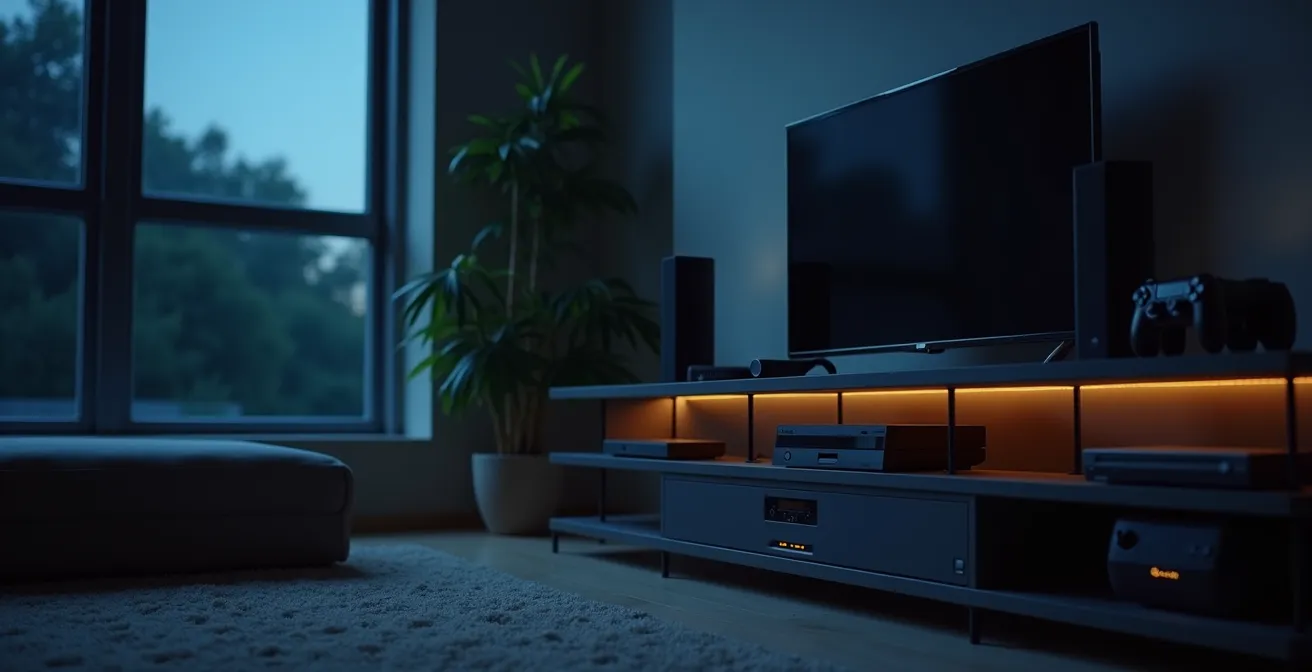
This audit allows you to focus your efforts where they will have the greatest impact. Discovering that your old entertainment system draws 25W in standby (costing over $30 a year) is a far more valuable insight than worrying about the 0.1W drawn by your phone charger. It empowers you to make targeted decisions, such as putting a specific device on a smart plug or replacing a particularly inefficient appliance.
Your Home Energy Audit Action Plan
- Acquire a Tool: Purchase or borrow a watt meter (e.g., Kill A Watt). This is your primary instrument for data collection.
- Systematic Testing: One by one, plug each electronic device into the meter and leave it for a short period in its “off” or standby mode to get a stable reading.
- Record the Data: Create a list of your devices and record the standby power draw for each in watts (W).
- Calculate Annual Cost: For each device, use the formula: (Watts × 24 hours × 365 days) ÷ 1000 × your local electricity rate per kWh. This reveals the real financial impact.
- Prioritize and Act: Rank the devices by their annual standby cost. Focus your efforts (using smart plugs, power strips, or replacement) on the top offenders, especially anything drawing over 5W in standby.
The Mistake That Ruins Your Tablet Battery Life When Using Laptop Chargers
The conversation around charging often fixates on the electricity cost, which we’ve established is minimal. A far more significant financial factor is battery longevity. A premature battery failure can force a device replacement costing hundreds of dollars. One common mistake that accelerates this degradation is related to heat, particularly when using powerful chargers for smaller devices.
Modern devices use USB-C Power Delivery (PD), a smart system that allows devices to negotiate the power they need from a charger. So, it’s generally safe to use a high-wattage laptop charger on your tablet or phone; the device will only draw the power it’s designed for. The problem isn’t the power itself, but the combination of charging and intensive use. A powerful charger can deliver more wattage (e.g., 20W vs a standard 5W), which generates more heat. If you are also performing a demanding task—like gaming or video editing—while fast-charging, the combined heat from the battery and the processor can become excessive.
As battery technology experts often emphasize when discussing USB-C power delivery:
The true enemy is not power, it’s heat generated when charging while performing intensive tasks.
– Battery technology experts, USB-C Power Delivery research
This excess heat is what irreversibly damages the internal chemistry of a lithium-ion battery, reducing its capacity and lifespan. The mistake isn’t using the laptop charger; it’s creating a high-heat scenario. To preserve your battery, avoid performing processor-heavy tasks on your tablet or phone while it is connected to a fast charger. Let it charge separately, or use a standard, lower-wattage charger if you need to use the device while it’s plugged in.
Key Takeaways
- Obsessively unplugging modern chargers saves less than a dollar per year and is not an effective energy-saving strategy.
- The real “energy vampires” are devices with high-power standby modes, like game consoles, cable boxes, and old audio equipment, which can cost over $20-$50 annually.
- Focus on automated solutions like smart power strips and device settings (auto-brightness, energy-saving modes) for the best return on effort.
How to Extend the Lifespan of Your Gadgets by 2 Years Without Professional Tools?
Ultimately, the most significant financial saving you can achieve is not by trimming your electricity bill by a few dollars, but by extending the life of your expensive gadgets. The single biggest factor in a device’s usable lifespan is its battery health. By adopting a few simple charging habits, you can dramatically slow down battery degradation and potentially add years to your device’s life, saving you the hundreds or thousands of dollars a replacement would cost.
The goal is to minimize stress on the lithium-ion battery. This stress comes primarily from heat (as discussed previously) and from keeping the battery at the extremes of its charge state (0% or 100%) for extended periods. Most device manufacturers have now integrated battery optimization software, but manual habits still provide the greatest benefit. The most effective strategy is known as the 40-80 rule. It’s a simple, proactive approach to battery care.
To maximize battery longevity, follow these non-technical steps:
- Keep the charge between 40% and 80%: This is the sweet spot for lithium-ion batteries. Avoid fully draining the battery or leaving it to charge overnight to 100% for hours on end.
- Avoid deep discharges: Letting the battery drain completely to 0% puts significant strain on it. It’s better to do shallow, frequent charges than deep, full cycles.
- Use battery optimization features: Enable settings like “Optimized Battery Charging” on iOS or “Adaptive Charging” on Android. These learn your habits and delay charging to 100% until just before you need the device.
- Perform a monthly calibration: About once a month, let the device discharge completely and then charge it to 100% uninterrupted. This helps recalibrate the battery’s reporting sensor but should not be a regular practice.
In the grand scheme of things, the electricity cost of these habits is trivial. The cost of leaving a charger plugged in for a year is less than $1. The cost of replacing a premium smartphone because its battery died prematurely is over $1,000. The return on investment for smart battery care is exponentially higher than for unplugging chargers.
Stop worrying about phantom power and start practicing smart device care. Your first step should be to use a watt meter to conduct a home energy audit and identify your true energy vampires—that’s where the real savings are.
Frequently Asked Questions about Dark Mode and Energy Savings
Does dark mode save battery on OLED screens?
Yes, OLED screens save significant battery in dark mode because individual pixels can be completely turned off when displaying black, using zero power for those pixels.
Does dark mode save battery on LCD screens?
No, traditional LCD screens don’t save battery in dark mode because the backlight remains on constantly regardless of the displayed colors.
What about Mini-LED displays?
Mini-LED displays with local dimming zones can offer minor energy savings in dark mode, creating a hybrid scenario between traditional LCD and OLED efficiency.